The Application Window
One frame surrounds every screen: a menu bar across the top, the current page between, and a footer along the bottom. The frame is built once and stays mounted for the whole session, so everything described here is present on every page. A project change is the one event that reaches into it and rebuilds what the middle holds.
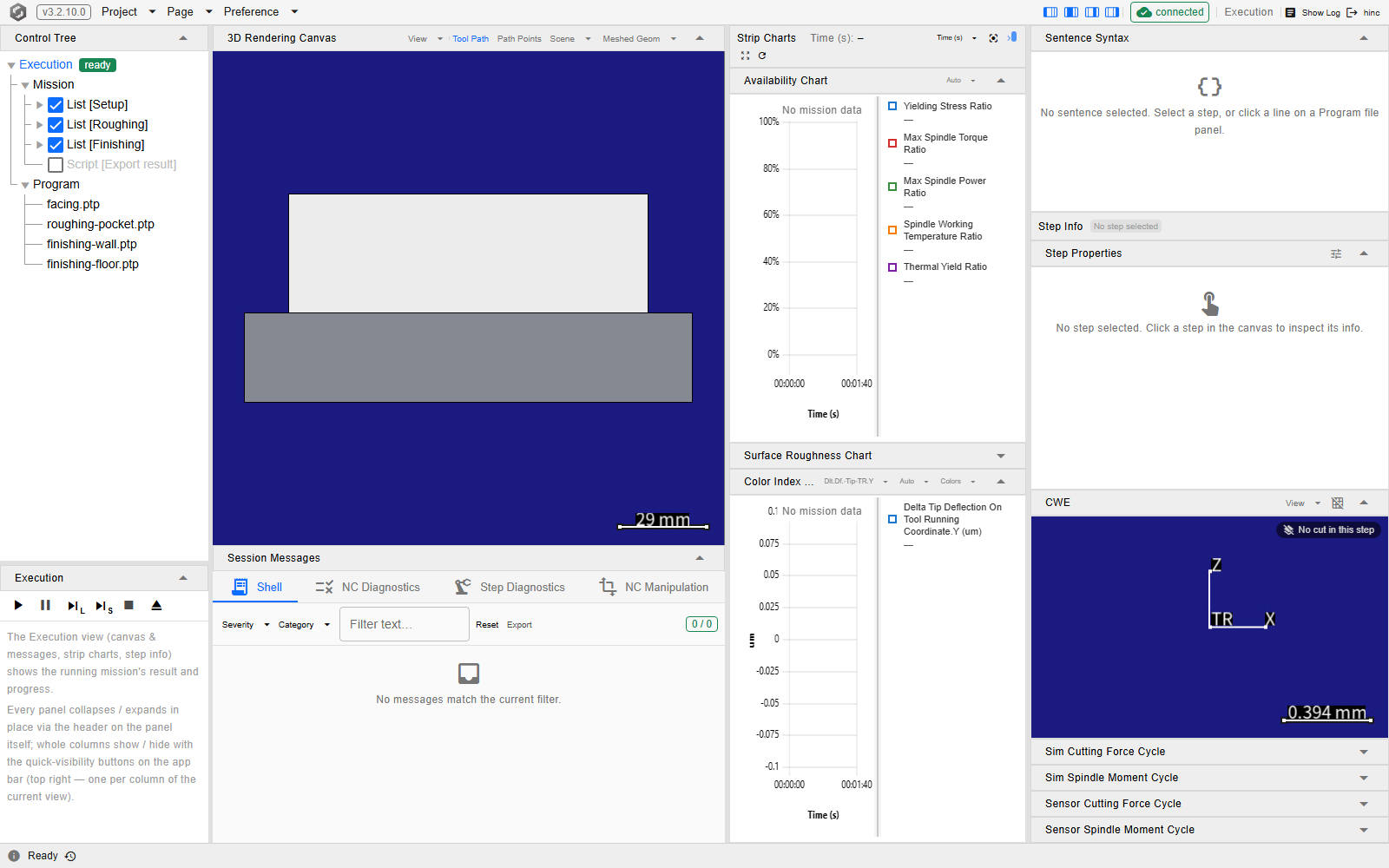
The whole frame at /execution, with the demo project open. The lit Execution switch names the
page, and only the column quick-toggles and the connection badge, in the right-hand group, are there
because of the page underneath them — the logo, the three dropdowns and the page switches sit on the
bar whatever page is open, and the sign-out button turns on whether a sign-in is asked for rather
than on the page. The strip along the very bottom is the footer, reading Ready
because nothing has been reported yet.
The menu bar
From the left: the brand logo, the version badge, the File, Preference and Help dropdowns,
and the page switches. The badge reads v and the running version, taken from the service's own
reply about itself rather than from anything in a project, so it carries a version before a project is
open; a service that reports no version leaves the space empty. On the installed HiNC it is also
the update badge: its colour and icon follow the update state — grey before any check, when the
update servers could not be reached, and while a failed download waits to retry; green with a tick
when up to date; orange while a newer version is offered, downloading, waiting to be applied or
being restarted into; red when the running version has been recalled — and its tooltip says which.
A click opens Software Update whatever the state;
Updating HiNC on Windows walks through the dialog.
Where the web service runs on its own — on a server, for example — the badge is the version mark
alone: grey and outlined, with no other state and no tooltip, and a click on it does nothing.
The bar is not drawn on the sign-in screen at all — the sign-in card carries a version mark under its
logo instead.
Help holds the two references the service hosts itself and, below a separator, the Log Viewer,
its last entry where the web service runs on its own; the installed HiNC adds Check for Updates…
after it, which opens the same Software Update dialog as the badge, and last Licence….
Licence… says what licenses this HiNC — its Sentinel key, with Update Licence (opens the
website) on the dongle package, or the cloud account it is signed in to — its plan, verification,
step quota and next sync — and then it also holds Usage Data and Privacy, Use on Another
Computer and Sign Out (see
Signing In with a Cloud Account).
Each reference opens in a new browser tab, so the page in front keeps its state: Documentation is
this documentation site, at /HiAPI-docsite/, and API Reference (Swagger) is the Swagger page
over the service's REST interface, at /swagger/index.html — see
Driving the Web Service over HTTP. Both come from the same service
the window is talking to, and neither asks for a sign-in. Log Viewer differs on both counts: it
is a page of the application, reading the service's own log file for the day — a support tool
rather than a shop-floor one, which is why it sits here and not on the bar — so it opens in place,
at /preference/log, behind the same sign-in as every other screen. See
Messages and Logs.
The page switches are one segmented control of four buttons — Tool House, Equipment and
Execution, in the order a job uses them, then File Explorer — and the one for the page on
screen is lit. Pressing the lit switch does nothing. The others are links, so a middle-click or
Ctrl-click opens that page in a new tab. Every address that reaches one of the four pages lights its
switch — a ?tree= selection, a browsed folder and the older addresses that redirect into a tree
included — and on the Log Viewer, which has no switch, none is lit; nothing on the bar names that
page, which carries its title in its own header row.
The rest of the bar is pushed to the right, and renders in this order, with a separator in front of the badge and in front of the sign-out button:
- The column quick-toggles — one button per column the current page actually has, on the three tree pages: four on Execution (the dock, the canvas-and-messages column, the Strip Charts column, the Step Info column), four on Equipment (the Control Tree, the editor, the canvas, Topology) and four on Tool House (the tool list, the Control Tree, the editor, the tool canvas), the last three greyed out while Tool House shows its gallery in their place. Each glyph is a small map of the page with its own column filled, and each tooltip names the column it toggles.
- The connection badge — the Execution page only. See below.
- The cloud licence badge — the installed HiNC signed in with a cloud account only, on every page, with a separator of its own: the plan and whether the licence is synced (offline with the minutes left, paused, expired, in use on another computer, consent required, not signed in). A click opens the Licence… dialog. See Signing In with a Cloud Account.
- The sign-out button — labelled with the signed-in user name, or Logout when the service has no name for it. It is there only while the service asks for a sign-in and this browser has passed it. It signs this browser out of the service; a cloud-package HiNC signs out of its cloud account from Help › Licence… › Sign Out instead.
The page area
Everything between the bars is the current page, and every page reached during a session stays built: there is no cap and nothing is excluded. Coming back to one finds its component state, an edit left half-finished and an established rendering connection exactly as they were.
Two things it does not carry over. Nothing restores a scroll position inside a panel: coming back to a
page finds its panels scrolled to where a fresh mount would put them. And a browser reload is not a
navigation — it rebuilds the whole application and empties the cache; what survives it is what lives
outside the page area: the address (a ?tree= selection in it included), the layout the browser
keeps for itself, and the preferences the service holds — the language, Show Physics Options, and
which of the Execution page's charts, its Session Messages panel and its Step Properties
panel are switched on.
The column buttons are remembered per page — the three tree pages each keep their own choices — while a width is shared wherever two pages have the same column. The tree's width is one setting across all three: Execution's left dock, and the Control Tree column on Equipment and on Tool House, so widening the dock on Execution widens the tree column on the other two. The editor column's width is one setting between Equipment and Tool House, and the tool list keeps a width of its own. A browser that has never dragged them opens the tool list at 300 px, the tree at 240 and the editor at 420. The list of unfolded tree nodes is a single setting too, one list for all three pages.
F5 to F8 belong to the Execution page. They drive its transport — F5 starts or resumes, F6 pauses, F7 runs one NC line, F8 runs one machining step — and they are bound only while that page is the one on screen, so on every other screen F5 is the browser's own reload. A key whose button is not available at that moment, or that is pressed with the focus in a text field, is handed back to the browser instead. That matters most for F5: while a run is in progress the start button is unavailable, so the key reloads the page and the screens the session had built go with it.
What a project change does
New, Load, ReLoad, a Save As to a location other than the one already open, and Close Project discard every page the session has built and rebuild it against whatever the project is afterwards — nothing at all, after Close Project. That is what stops a screen showing values from a project that is not open any more, and it is also why in-page state that was never saved does not survive one.
What decides a rebuild is the service opening or closing a project, or the window's path moving. A plain Save does neither and never rebuilds. Save As back to the path already open behaves exactly like Save and rebuilds nothing, while Save As to a different location moves the window onto that path and everything rebuilds. Picking the already-open project out of the Load browser rebuilds just as ReLoad does: the file is read again on the service, and every screen is built again against it.
The same rebuild runs once at startup, with nobody having done anything: a browser reaching a service that already has a project open receives that path as its first project change and builds on it.
New, Load, ReLoad, Save, Save As and Close Project run one at a time. A second one started while the first is still running is refused rather than queued, and the refusal arrives as a warning reading Another project operation is in progress. Please try again. Nothing is rebuilt and nothing is lost. The turn is held for the whole of the operation, so a Close asked for while a Load is still reading is refused the same way, and so is a Load asked for while a Close is still tearing the project down.
The footer
A 29-pixel strip holding three regions, each independent of the other two.
Left — the latest reported line, with the recent ones behind it. The text is the most recent message the application has raised, or Ready before there has been one, and its tooltip carries the full text with whatever caption came with it. The icon in front decodes the severity: a grey information mark for a plain status line, a green tick for a success, an amber triangle for a warning, a red mark for a failure. The clock button beside it opens Recent messages — newest first, capped at a hundred, each row repeating its severity as a coloured strip down the left edge and carrying the time it arrived. That list belongs to this browser and this session: Clear empties it and returns the line in front of it to Ready, a reload empties it, and it is written down nowhere.
Middle — the session strip. It is drawn only while a run has produced something, it is emptied by
a project change, and the space is simply empty the rest of the time. A glyph leads each line — a locator mark on a cursor tick, the
message's own severity mark otherwise — and an anchor follows it in a monospaced prefix wherever the
entry carries one: a cursor line carries Sn and the sentence index it sits on, a message line the
anchor the message itself supplies. Hovering opens the recent activity behind it — newest first,
capped at thirty, with a run of consecutive cursor ticks collapsed into its latest; clicking pins
that list open.
Right — the background zone. It appears only while one of the File menu's operations is in flight — Close Project included — names the operation and the path it is working on, and vanishes when the operation ends.
Switching the language re-resolves the interface at once and without navigating: the menus, the page switches and the browser tab title all change. The two message regions do not follow. Each line in the recent list and in the session strip keeps the language it was raised in, so a footer read after a language switch is a mixture by design.
The connection badge
The badge on the menu bar belongs to the Execution page alone; the other canvases carry their own badge inside their panel. It aggregates that page's rendering connection with the service connections behind its panels, and reads a green connected only while every connection in the set is up — orange while any of them is (re)connecting, and red only once none is connecting and one is still down.
The set is not fixed. The rendering connection is always folded in on that page, but a service
connection joins only while something is actually using it — an open panel, or the frame itself. One
that nothing is consuming is left out rather than forced to connect. ExecutionStatus has a consumer
for the whole session and is therefore always in the set; the rest come and go, which is why opening
and collapsing panels changes what the badge reports. A green badge means every connection in use is
healthy rather than every connection that exists.
Only the two problem states carry a tooltip — when everything is connected there is nothing to
explain and none appears. The tooltip lists one row per connection, Rendering, Shell, NcDiag and
the rest, and those names are identifiers rather than interface text: in a translated session only the
state beside each name changes language.
See Also
- Basics — the rest of what is true on every screen
- Signing In — what puts the sign-out button on this bar in the first place
- Projects — the File menu, and what each of its entries does
- Finding Your Way — the page switches and the screens behind them
- Preferences — the Preference menu, and the settings that are not in it
- Messages and Logs — the surfaces the footer summarises, and the log behind Help's Log Viewer
- Updating HiNC on Windows — the installed HiNC's update badge and what its states mean, and the Software Update dialog it and Help's Check for Updates… open
- Signing In with a Cloud Account — the Licence dialog Help's last entry opens, and signing a cloud-package HiNC in and out
- Starting and Stepping — the transport those F5–F8 keys drive, and the connection the bar's badge reports on
- Watching the Run — the two columns the quick-toggles show and hide