Starting and Stepping
Six buttons and four keys drive a run. What each of them does is short to say; which of them you can press at a given moment is the part worth learning, because the availability of a button is what tells you where the run actually is.
Where it is
The Execution page at /execution. The transport sits in the run header at the top of the Control
Tree pane in the left dock, above the Mission, Program, Step Variables and Step Colors
roots, with the run-state badge at its right end. It is there whatever the tree has selected — so it stays
reachable while you are editing a Mission command — and its keys keep working while the Control Tree
row is collapsed. There is exactly one of it on the page, and it is the thing that binds
F5 to F8.
The six controls
| Control | Key | What it does |
|---|---|---|
| Start / Resume | F5 | Starts the run, or resumes a paused one |
| Pause | F6 | Holds the run where it is |
| Run one NC line | F7 | Advances by one line of the program |
| Run one machining step | F8 | Advances by one machining step |
| Stop | — | Ends the run |
| Reset | — | Unwinds the session back to the start |
Start and Resume are the same button, not two: it reads Start from the beginning and Resume once the run is paused. The two single-advance buttons share one icon and are told apart by a small letter in the corner — L for a line, S for a step. Stop and Reset carry no key.
Reset unwinds in the background: the button shows a spinner while it works and the rest of the application stays usable.
One line is not one step
The two single-advance buttons exist because the two units do not line up. One line of program can produce many machining steps — a long move at a fine machining resolution is dozens of them — while another line produces none at all, because a coordinate selection or a coolant code is a block with no motion under it. So advancing by one line and advancing by one step land in different places.
Use Run one NC line when you are following the program: it stops where the next line begins, which is where the program text you are reading changes. Use Run one machining step when you are following the cut: it stops at the next thing the machine did, which is the unit the Step Info column and the strip charts are keyed on. Stepping by step through a single long move is how you watch one cut develop; stepping by line skips straight past it.
What you can press, and when
The whole bar is dead until two things are true: a project is open, and the page's 3D canvas has connected to the service. The second one is easy to miss — the connection is what binds the run engine to this page, so a canvas that has dropped its connection leaves every transport button greyed even though the project is plainly loaded. The connection badge on the menu bar is where you check that.
With both in place, availability follows the run state:
| Control | Available while the run is |
|---|---|
| Start / Resume | ready, or paused |
| Pause | running |
| Run one NC line / Run one machining step | ready, or paused |
| Stop | running, paused, or finished |
| Reset | any time a project is open |
Nothing steps a moving run. Both single-advance buttons are unavailable while the run is going, so the way to step through something you are already watching is to pause first and then step. That is the single most useful thing in the table: the buttons are not refusing you, they are telling you the run has not stopped yet.
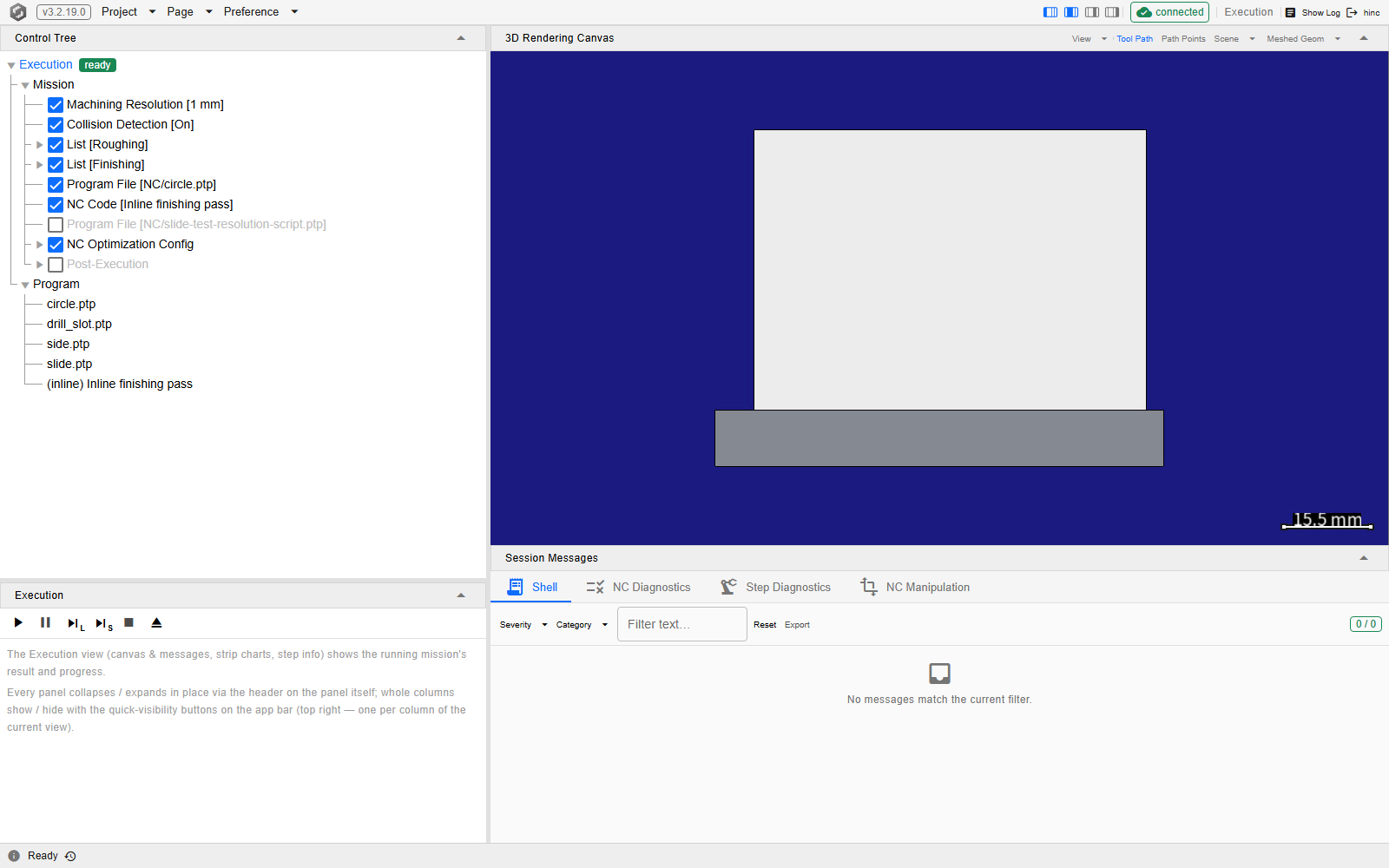
The bar at rest, with the demo project open and nothing run yet, at /execution. Start, the two
single-advance buttons and Reset are live; Pause and Stop are greyed, because there is no run to hold
or to end — and the two single-advance buttons carry the L and the S that tell them apart. The
badge at the right end of the run header reads ready, and the block on the canvas is uncut.
Starting again: Reset first
Neither Stop nor Start unwinds the session; only Reset does. When a run finishes, Start is unavailable and Stop stays live, and pressing Stop on a finished run returns the badge to ready and makes the next Start one after a RESET (A Start after a Stop) — the session keeps the machined workpiece, its steps and its messages. A run ended early with Stop is left the same way, and the rows below the point it reached — an end-of-stage record, a Post-Execution — never ran. The row the Stop lands in ends at its next check: a program before its next machining step, so the rest of the block it is on is not played — unless that rest takes no step and sets no new feed, spindle speed or tool, and then the block plays to its end; a Post-Execution before its next output; an NC optimization at the next of its own checks. A Script's own lines run on unless one of its calls ends them: a play or an NC optimization ends the script there, while a step-physics recompute ends as canceled and returns, and writing the step or shot files does not look at the Stop, so the script goes on with its next line. The actions a Script returns are played like any other row's: the Stop ends them after the one it lands in.
A Start from there plays the mission again on top of that session. The programs cut a part that has already been cut, and every Read On First Or Write record sees steps already produced and writes instead of reading: the stage-0 record replaces the cached stock with the machined part, and every later run starts from stock that has already been cut until that record's own Reset deletes the file — see A Mission That Resumes. So press Reset between runs, and start from the ready it leaves.
Over HTTP, where no button is greyed, the start call does not reset either: an automated replay resets, starts and then waits for its own run to end — Project Construction is the sequence.
A Start after a Stop
Stop is the controller's RESET. A Start after a Stop — pressed while the run was playing, paused
or already finished — plays the mission again from where the machine stopped, in HiNC's program-end
reset state, modelled on a controller's RESET: the first program starts as a program after the
stopped one's M02 / M30 would (General NC Code Support
lists what a program end cancels).
- Cancelled: tool length compensation and tool center point control —
G43/G44/G43.4on Fanuc,TRAORIon Siemens,M128/FUNCTION TCPMon Heidenhain, while the length compensation a SiemensDor a HeidenhainTOOL CALLcarries stays; cutter radius compensation (G41/G42; HiNC keeps theDnumber); a tilted plane or a rotation; a canned cycle, and on Heidenhain a cycle defined withCYCL DEF; polar interpolation (G12.1); a modal macro (G66); local coordinates (G52); and the volatile variables (#100–#499; on HeidenhainQ200and up). - Kept: the motion mode, absolute or incremental positioning, the plane, the feed mode and the
feedrate, the work coordinates (
G54–G59), path smoothing, on Heidenhain a datum shift, a mirror, the circle centre (CC) andM126, and the tool. The spindle and the coolant stay as the run left them; the program's ownS,M3/M4/M5andM8/M9take effect where they differ. This split is HiNC's, one for every controller; each controller's own RESET keeps or returns a set of its own — see Where HiNC differs from a controller. - Where it starts: at the last motion the machine executed, with the tool that was in the spindle there. What the run had read ahead of that motion and not yet cut — blocks, a tool change among them — is dropped, as a controller drops the blocks it has read ahead. Until that Start the canvas shows the machine where the run had got to; the Start first puts it back at that point.
The point it goes back to is the last motion whose cut had run, so it depends on how far the cutting
had caught up when you pressed Stop: it can be a whole queue of the run's pipeline — thousands of
steps — behind the tool on the canvas, and with physics or collision detection on that is the usual
case. To start again from where the canvas shows the tool, Pause, wait until the cutting has caught
up (the stock stops changing), then Stop. In the run after a Stop, the first repositioning that
cuts nothing — a CL FROM or tool change, a script's teleport — starts the cut afresh at its target:
nothing is swept between where the machine stopped and that point. If the setup has replaced the
machine since the Stop, the Start begins where the machine stands instead and says so on Shell
(Play-Resume--PoseNotPlaced).
A run that ran to its end, with no Stop, hands its position and its modal state on to the next one
— less what a program end cancels, when it ended with M02 / M30 — as a mission that splits one
job over several files needs. After a Stop, a script's PowerReset() or a switch of the controller
brand does not send the machine home: the next NC program starts where the machine stopped, in the
power-on state; a CL or CSV file's first record repositions the machine as in a new session. With no
Stop before them, the machine stays where it is while the next program's motion is interpolated
from the home position, so its first step jumps across, as before. A play that a fault ended, or
that the licence cut short (one that cannot pause, such as a play requested over HTTP), counts as
stopped: the next one starts in the program-end reset state, at the last step that ran. So does a
script's foreach over RunNcFile or RunNc left with break before the program's end. Without a
Stop nothing is put back: after a setup edit between two runs, the machine stands where the setup
put it and the next program goes on from the last block of the one before, as before. After a Stop,
the Start puts the machine back at the stopped pose, over any axis position the setup changed in
between.
Only Reset, or anything else that ends the session, returns the machine to its home position and
the session to its start. A script's ResetRuntime() sends the machine home too, and the next run
starts there, but the session goes on.
The program-end reset after a Stop, and the move back to the stopped pose, are the default NC
interpreter's. The legacy one, which a script selects by setting EnableSoftNcRunner to false,
does neither: its next program goes on in the modal state the stopped program left.
A known problem. After a Stop and a Start — a Stop on a finished run included — an NC
optimization or a CL-to-NC conversion of the session (OptimizeToFiles, ConvertClToNcFiles)
writes what the stopped run had played and the whole run again into the same output file, as two
runs of one program in one session already do. Press Reset before a run whose optimized or
converted files you keep.
Where HiNC differs from a controller
What a controller's RESET keeps depends on the controller and on its parameters, and none keeps exactly the set above.
- Fanuc. With parameter
CLR= 0 a Fanuc control keeps a canned cycle and a two-dimensionalG68across a RESET,G68.2and a three-dimensionalG68only whileD3R(No. 5400#2) is 1, and theG43.4vector only whileLVKis 1; with tool center point control and a tilted plane combined it keeps none of them. WithRLCandWZRat 0 it keeps local coordinates (G52) as well. HiNC cancels all of these, as at a program end, so a program meant to be started again after a Stop sets them up itself. A Fanuc control also clears path smoothing (G05.1) on RESET and only#100–#199of the volatile variables, and wants theDnumber commanded again (withCFH= 0 the RESET clears it). - Siemens. With its factory settings a Siemens control returns every G group to its reset value
(machine data
MD20150,G500among them), the tool length compensation and the cutting edge to theirs (MD20120,MD20130), S to 0 and F to its default (MD22410); HiNC keeps the work coordinates, the positioning mode, path smoothing, the feedrate, the spindle speed, the tool, and theDnumber with the length compensation it carries. - Heidenhain. A Heidenhain control takes one of two paths. Started again from its head without
a reset, the program keeps everything:
M128, aPLANEtilt, a rotation, a datum shift, a mirror and the circle centre (CC). Reset program, or selecting the program again, drops them all, the datum shift and the mirror with them. HiNC takes neither path: it cancelsM128, the tilt and the rotation and keeps the datum shift, the mirror andCC. A Heidenhain control also keepsQ200and up, and a program end resetsM126on it, where HiNC keepsM126acrossEND PGMand a Stop. - The spindle. A Siemens control stops the spindle on RESET and a Fanuc control drops the M
codes; HiNC keeps the spindle turning, so a program that cuts before its own
M3runs as if the spindle were on. - A cutter-location file has no retract or safe approach of its own: with the same tool and no
FROM, its firstGOTOafter a Stop runs straight from where the machine stopped, often through the stock, and HiNC reports the cut or collision that a program with a post-processor's approach would not make. - HiNC's own conventions. Four of the rules above are HiNC's, not a machine's. The start at the
stopped pose after a
PowerReset()is what a machine with absolute position detectors does; one with incremental detectors returns to its reference position first. A machine starts its next program where it stands, where HiNC, after aPowerReset()or a brand switch with no Stop, interpolates it from the home position. An axis position changed in the setup after a Stop stands for a move by hand, which on a machine starts the next program there; HiNC's Start puts the machine back at the stopped pose instead. And a controller stops at the end of a file withoutM02/M30— a Fanuc control with alarm PS5010 — and wants a RESET before the next Start, where HiNC hands the modal state on to the next file, as a job split over several files needs.
Reading the run state
The state sits at the right end of the run header, beside the transport, as a coloured badge — ready, running, paused, finished — pinned above the tree, so it stays in view however far you scroll the tree. When the left dock is narrowed the buttons scroll out of view before the badge does: the run state is the last thing a resize hides. The footer along the bottom of the window carries the session's own messages.
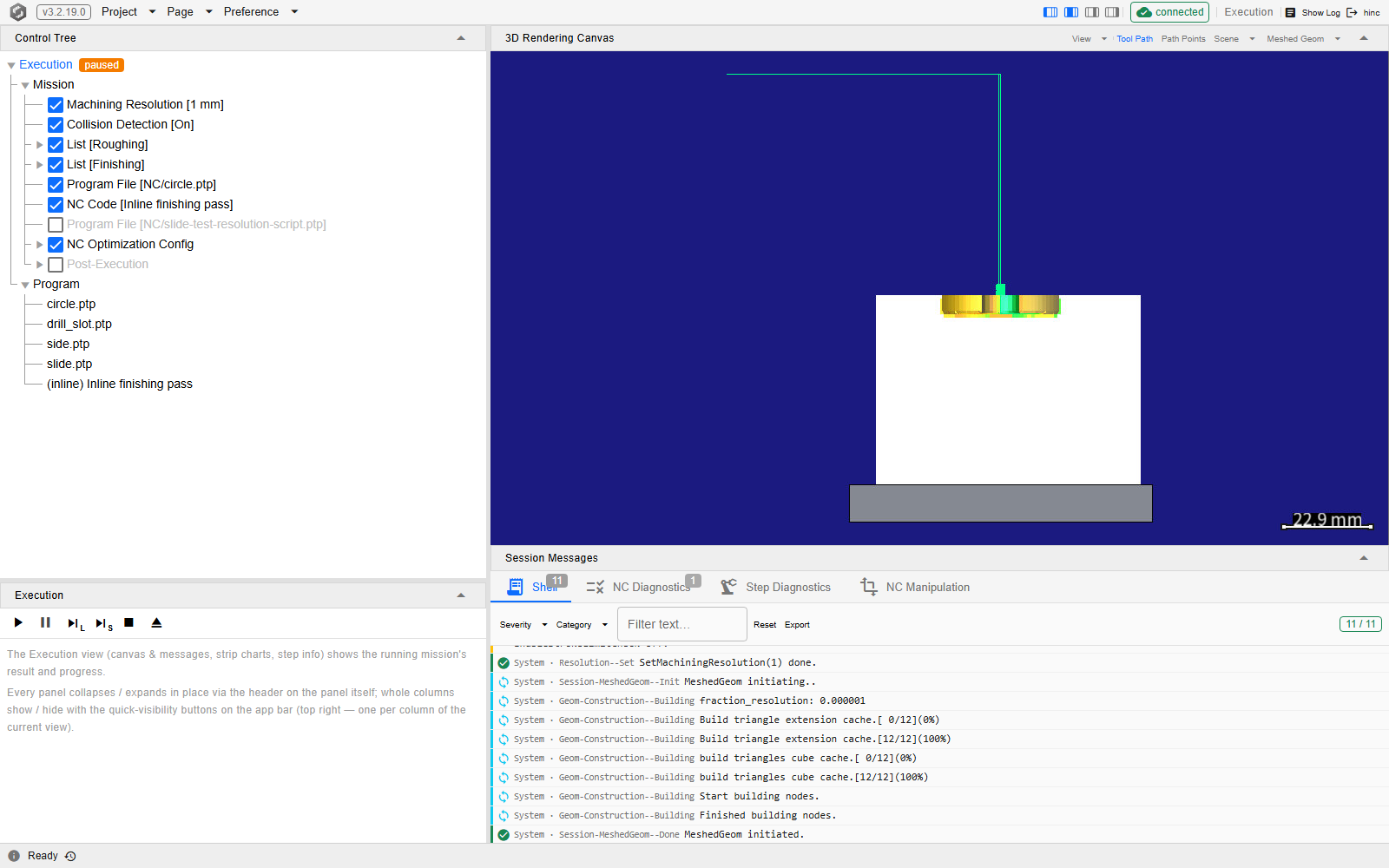
The same page with the mission paused part way through. The badge reads paused in orange, Pause is grey, and Stop has joined the live ones — so the bar alone tells you a run is open and held. On the canvas the tool path the run has laid down so far is now drawn over the block, and the tabs under it are counting what the run has reported: Shell is badged with the eleven messages the load and the run have written between them and NC Diagnostics with the one the parser raised, while Step Diagnostics and NC Manipulation carry no badge at all.
A paused badge can also be the licence's doing. A licence may cap the number of machining steps
since the runtime was last reset; at the cap the run pauses on the step it refused, and Step
Diagnostics carries the error MachiningStep--LicenseCapReached, anchored to that step, saying
so. Nothing is lost: Reset unwinds the session and counts from zero, and Resume asks for the
same step again — so a cap lifted in the meantime continues the run without a gap, while one still
in force pauses it again without repeating the message. A Start after a Stop, with the cap
still reached and no Reset between, repeats the error on Shell and pauses on its first step.
Without such a cap nothing changes. What the cap is, beside the licence's cap on the mesh width, is
Mesh Resolution.
The installed HiNC's cloud package, licensed by a cloud account, pauses for more licence reasons,
each with its own message on the paused step. MachiningStep--LeaseExpired: no sync with the licence
server succeeded before the licence it holds ran out, at most an hour after the last successful one;
the run continues by itself, from the step it paused on, once a sync succeeds.
MachiningStep--LeaseEnded: the licence server ended this computer's licence — the account was taken
over on another computer, its password was changed, the licence ended or was withdrawn, or the
licence server's new terms are to be agreed to, as the word in the message's brackets says — and the
run stays paused: sign out, sign in again (after entering a new activation code, if the licence
ended) and play the run again; after consent-required, close HiNC and start it again instead, and
its sign-in page asks for the agreement. A licence that reaches its end date during a run pauses it
with MachiningStep--LeaseExpired too, and that pause does not lift. On the free Trial, the
account's steps can pause a run as well. MachiningStep--LeaseStepsExhausted: the steps the licence reserved
for this computer at the last sync are used up, and the run continues by itself once the next sync,
within about a minute, brings more. MachiningStep--WeeklyQuotaExhausted: the account has used its
steps of the last 7 days, and the run continues by itself once a sync after the refill at midnight
UTC brings steps. MachiningStep--TrialGrantExhausted: an account whose email address is not
verified has used up its one-time trial, and the run continues once the address is verified and the
next sync brings steps. MachiningStep--LicenseCapReachedUnverified: the step cap of an account whose
email address is not verified, said in place of MachiningStep--LicenseCapReached; Reset gets
past it as past that cap, and so does Resume once the address is verified and a sync has raised
the cap.
Signing In with a Cloud Account covers them
all.
The keys, and where they stop
F5 to F8 are bound only while the Execution page is the one on screen. On every other page F5 is the browser's own reload, and the same is true here in two cases: when the button a key drives is unavailable at that moment, and when the focus is inside a text field.
Warning
That exception bites hardest on F5 during a run. Start is unavailable while the run is going, so the key falls through to the browser, the page reloads, and the session goes with it. Pause with F6 first.
See Also
- Running a Simulation — the rest of running a job
- Building a Mission — the command list this transport plays
- Watching the Run — the canvas and the charts that fill while this plays
- Inspecting a Step — the column that reads whichever step you stopped on
- When Something Goes Wrong — what to read when the run does not do what you expected
- The Application Window — the menu bar's connection badge, and the footer this page's state is reported in
- A Mission That Resumes — the shape a mission should have, and how it lets a stopped run restart
- Mesh Resolution — a licence's cap on the steps since the last reset, at which this transport pauses, and its cap on the resolution
- Signing In with a Cloud Account — the pauses of a cloud licence, and how a run gets past each
- Execution Tool Bar — the component behind these buttons: the enable rules, the status feed and the key bindings