Finding Your Way
The application is a handful of screens, and most of what a job configures lives inside a tree on three of them. The menu bar's page switches reach four of those screens, and they are not all of them. Every node of a tree has an address of its own, so a place in the application can be linked to rather than described.
The screens
The menu bar carries four page switches, the one for the screen on display lit. The first three are the job, in the order a job uses it:
- Tool House — the tools: a list of them, beside the Control Tree of the one picked
- Equipment — the machine tool, the spindle capability, the ambient and coolant conditions, the fixture, the workpiece and the controller
- Execution — the run: the mission that is executed, the program as it was played, and what the run reports
After them, the one utility:
- File Explorer — browsing the files under the roots the service exposes
No switch is ever greyed out. All four work with no project open; what they lead to is what changes. Pressing the lit one does nothing, and a middle-click or Ctrl-click on another opens that screen in a new tab. A machine's kinematic chain is authored on Equipment too: it is loaded on the Machine Tool item and edited in that page's Topology column — see Building Virtual Machine Tools.
Two screens have no switch:
- Log Viewer, reached from the Help menu, below its separator. Its address is
/preference/log. - The sign-in page, which the service raises on its own when it wants one.
Selecting inside a tree
All three tree pages carry a Control Tree under a header reading Control Tree, with the selected node's editor under a header of its own — a column beside the tree on Equipment and Tool House, a row beneath it in Execution's left dock. That editor header names the path of the selection from the tree's root down — Mechanism / Workpiece / Material / Workpiece Material — and these pages name the same place with the screen in front, as Equipment / Mechanism / Workpiece / Material / Workpiece Material; the header shows as much of the path as the column is wide, so a deep path arrives truncated.
Equipment's tree has four roots — Mechanism (holding Machine Tool, Fixture and Workpiece), Spindle Capability, Environment (holding Ambient Temperature and Coolant) and Controller — in that order, the middle two built only while Preferences' Show Physics Options is on. With a project open, a CSV Controller and a CL Controller node follow, each behind its own Preference checkbox — as siblings of Controller at the same level, not as children of it. With no project open neither node is built, whatever the preferences say. Execution's tree has four roots, Mission above Program above Step Variables above Step Colors. Tool House's tree is one tool's: the tool picked in the list beside it, whose parts — General, Cutter, Holder, Clamping and, while Show Physics Options is on, Int. Holder — are the roots, so that page's editor header puts the tool in front, as Tool #1 / Cutter / Flute Profile. Picking another tool keeps the selected node; see Cutter.
Equipment is four columns, left to right: the Control Tree; the editor column, the selected node's panel at the full page height under a header naming the selection, which is where the Spindle Capability items put their power and torque charts; the canvas; and Topology, the graph of the whole equipment — machine tool, fixture, workpiece and tool — with an editor for the picked anchor, branch or part beneath it. Each column has a button of its own at the right-hand end of the menu bar, and the fourth of them, titled Toggle the Topology column, is the one that shows and hides Topology; a window at least 1280 px wide starts with that column shown, a narrower one with it hidden. What the Topology column edits is Anchors and Roles.
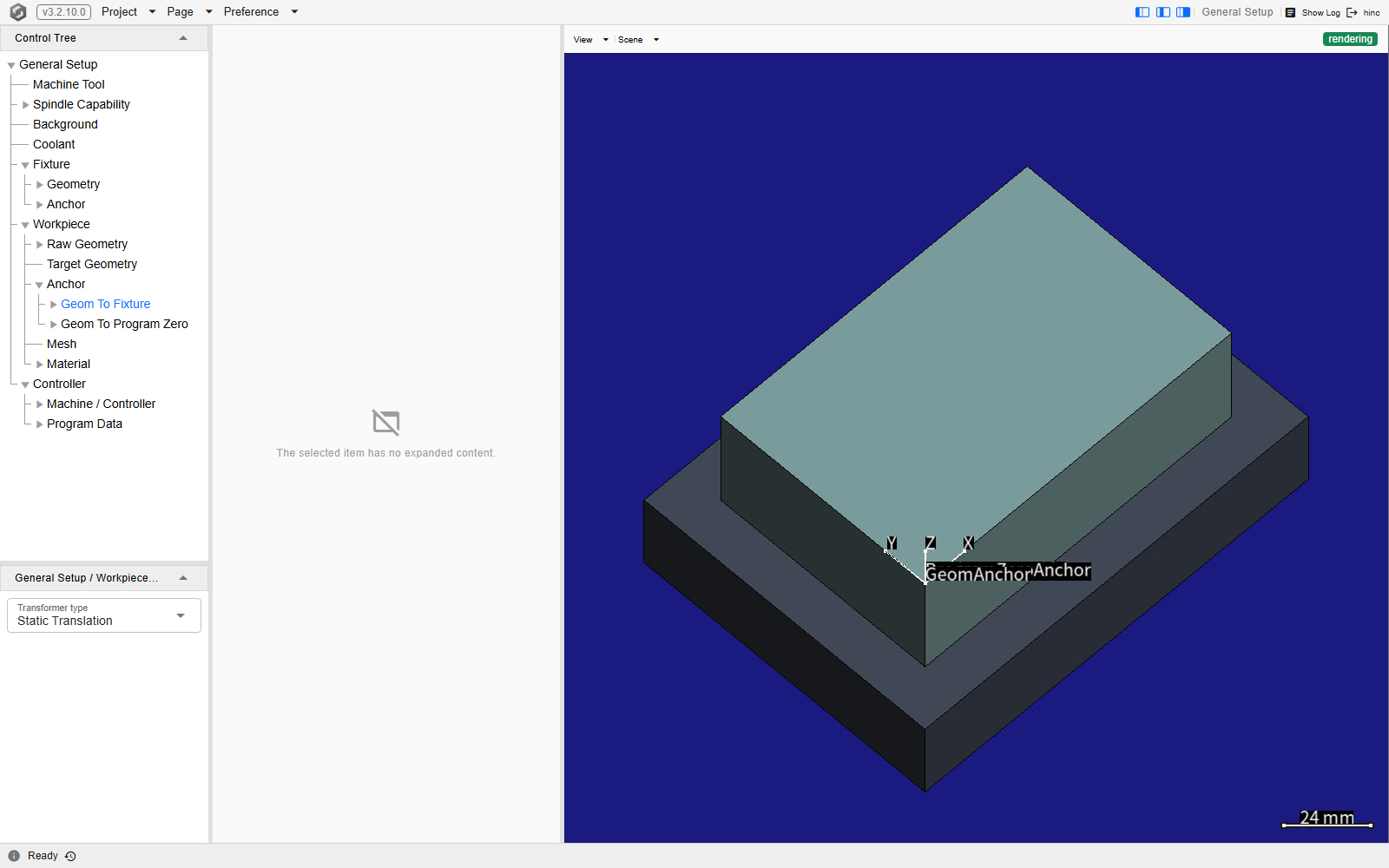
Equipment at /equipment?tree=equipment/mechanism/workpiece/material/workpiece-material
— the Material group is in the tree only while Preferences' Show Physics
Options is on and a workpiece is loaded — with the Workpiece branch's Material group expanded
and Workpiece Material selected. Its
editor is the column beside the tree: the material's file row, whose Browse Resource… entry
picks a .WorkpieceMaterial file from the resource folder, over the read-only Name and Note
of the material loaded. The canvas draws the workpiece, and the Topology column on the right holds
the equipment graph.
Linking to a node
The selection rides in the address as a ?tree= value, so the address bar is already the link:
copying it copies the node, not just the page.
- To take a link from the tree instead, right-click a node's label. Every label is a real link to that node's address, so the browser's own copy-link and open-in-new-tab entries both apply to it.
- Ctrl-click or Cmd-click a label to open that node in a new tab; Shift-click and middle-click open it wherever the browser opens any other link. The current tab's selection stays where it is.
- A plain left click selects the node in place, without navigating.
- Paste a
?tree=value belonging to another page's tree and it redirects to the page that owns it — one of the other two tree pages — so a link does not have to name the right screen to reach the right node.
Tool House has no ?tree= at all — its address is the selection, as /tool-house/<tool>/<node path>: the tool number, then the node's path through that tool's tree, as deep as the tree goes. So
/tool-house/1/cutter/material is a link to one tool's cutter material, and
/tool-house/1/cutter/contours/fluting/flute-0/side to the side contour of that cutter's first
flute.
Arriving at a tree page with no selection in the address — no ?tree=, or a bare /tool-house —
still lands on a selected node: the last selection this browser made there, or the tree's first root.
The address takes that node on as soon as the tree is built, so the address bar is a whole link from
then on.
Important
An address for a node its Preference checkbox is currently hiding — a CSV Controller or CL Controller node — is honoured only when the tree is built while that address is the current one, and it reveals nothing without a project open. In practice that means the tree's first build on that address: pasting the link into a new tab, reloading on it, or opening Equipment for the first time since the page or the project was loaded. Jumping to it from a screen that has already shown Equipment for the current project does not rebuild that tree, so the address is dropped in silence: the address bar keeps the value, the node does not appear, and the selection stays where it was.
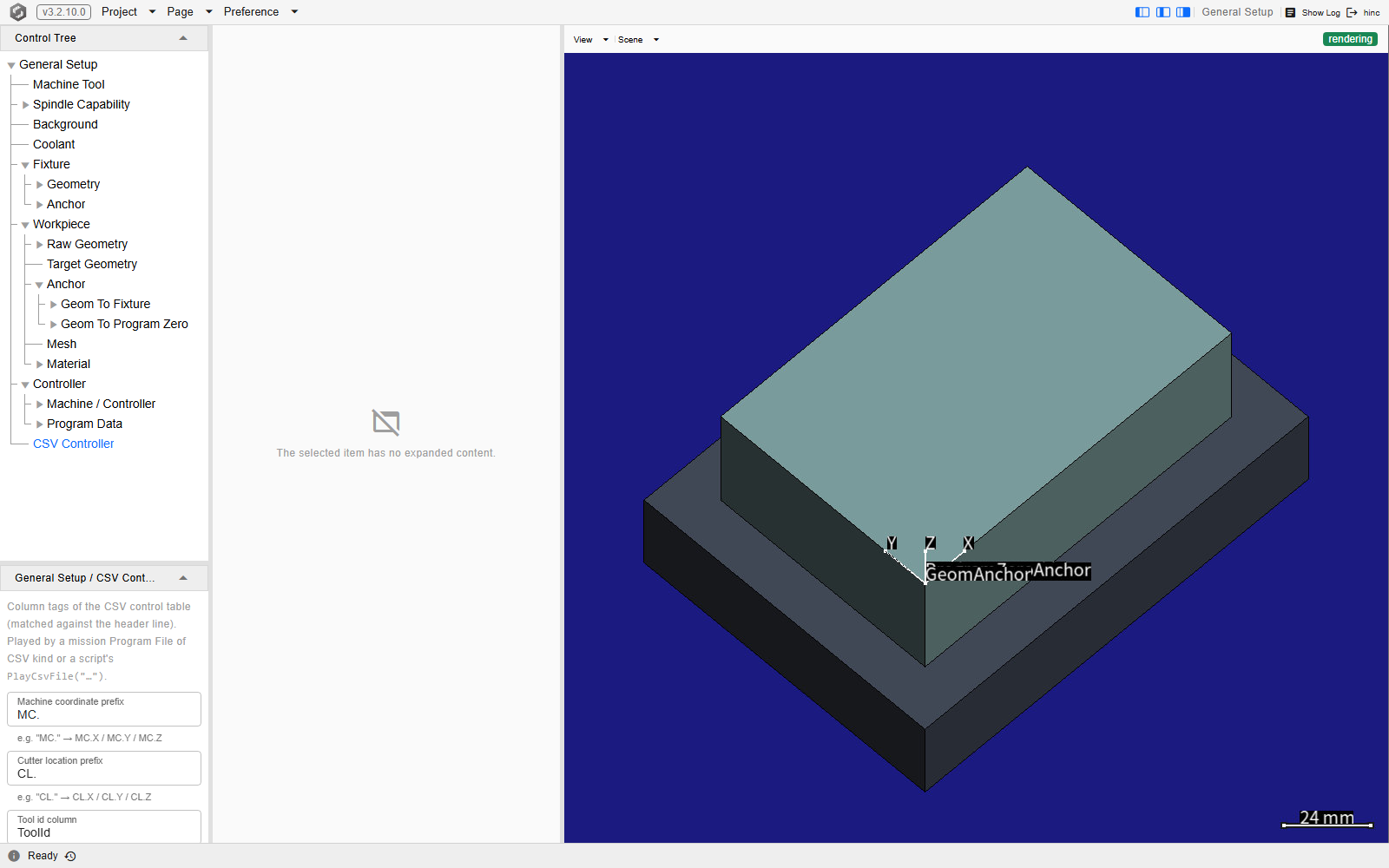
The same page at /equipment?tree=equipment/controller-csv, loaded fresh on that address with
the CSV Controller preference still off — the address alone is what puts the node in the tree.
CSV Controller sits below Controller at the same indent — a sibling of it — and its editor
describes the fields as column tags matched against the CSV header line: Machine coordinate
prefix MC., Cutter location prefix CL. and Tool id column ToolId.
The addresses
Six addresses render a screen of their own. The bracketed segments are optional, so the bare address resolves too and the screen fills them in from its own state; File Explorer's trailing path carries as many segments as the browsed folder is deep, and Tool House's as many as the selected node.
| Address | Screen |
|---|---|
/execution |
Execution |
/equipment |
Equipment |
/tool-house/<tool>/<node path> |
Tool House |
/util/file-explorer/<root>/<path> |
File Explorer |
/preference/log |
Log Viewer |
/login |
the sign-in page |
/ lands on Execution. Ten further addresses render nothing of their own and redirect into a tree
page or one of its nodes instead:
| Address | Lands on |
|---|---|
/general-setup |
Equipment, with the address's ?tree= value kept, so an old link lands on the same node |
/controller, and anything below it |
Equipment, the Controller branch — any trailing path is discarded |
/spindle-capability/<tab> |
Equipment, the Spindle Capability branch — on that tab's item when the segment names one, on the branch itself otherwise |
/equipment/spindle |
Equipment, the Spindle Capability branch |
/fixture, and anything below it |
Equipment, the Fixture item |
/workpiece, and anything below it |
Equipment, the Workpiece branch |
/machine-tool |
Equipment, the Machine Tool item |
/util/mech-builder |
Equipment, the Machine Tool item |
/equipment/background-coolant |
Equipment, the Environment root (Ambient Temperature / Coolant) |
/mission |
Execution, the Mission branch |
An address matching none of these lands on the application's own 404 Not Found page, which
prints the address it could not match and offers Back to Execution. A ?tree= value naming no
node of the built tree is ignored instead: a page opening on it starts with nothing selected, its
editor reading Select an item in the Control Tree to edit it here., and a page already open keeps
the selection it had. With Show Physics Options off, the Spindle Capability and Environment rows
above end this way, because their nodes are not built.
Warning
Tree ids are not promised to survive a version change. An old link keeps resolving because the application migrates known older ids, but nothing should be built on an id staying the same.
If the tree is not there
The tree is behind one of the column toggles at the right-hand end of the menu bar. On Execution that button is titled Toggle the Control Tree / editor dock, and switching it off removes the left dock whole, tree and editor together. On Equipment there are four buttons, one per column — Toggle the Control Tree column, Toggle the editor column, Toggle the Equipment canvas and Toggle the Topology column — so the tree and its editor go separately there, and any of the four is a way that page can arrive looking short of a column. Tool House has four as well — Toggle the tool list column, Toggle the Control Tree column, Toggle the editor column and Toggle the tool canvas — and there, too, the tree and its editor go separately. The browser remembers each choice, so a column switched off is still gone after a reload; the same button switches it back on. Tool House also hides its tree while it shows the gallery of every tool drawn to scale: List in the header of the tool list brings the tree back, and so does clicking a drawing.
See Also
- Basics — the rest of what is true on every screen
- The Application Window — the menu bar the page switches sit on, and what keeps a visited screen alive between visits
- Signing In — the screen that has no switch because the service raises it
- Projects — what a project change does to a tree, and to the node an address selects
- Preferences — the two checkboxes behind the controller nodes, and the setting that changes what the trees carry