Signing In
The sign-in card is the /login route, and whether anyone ever reaches it is the service's decision
rather than the browser's. With the gate on, the service's data and its live updates stay closed
until a browser has signed in; with it off, the route sends every visitor straight back into the
application. A sign-in buys admission and nothing more — the service matches a name and a password
once, then carries the name only to label the sign-out button, and nothing it does afterwards
depends on which account was used.
Note
The installed HiNC's cloud package has a second sign-in: its Cloud account sign-in page, shown before the application starts, signs the computer in to the cloud account that licenses it — see Signing In with a Cloud Account. Nothing on this page applies to it.
Whether the gate is on
The Auth section of the service's configuration decides it, through its Enabled flag. The flag
falls back to off when nothing sets it, so a service whose configuration carries no Auth section,
or carries one with the flag off, runs with no login at all. The configuration as shipped leaves the
flag off and carries no account, so HiNC installed on a computer of its own opens straight into the
application; a service that other computers reach turns the flag on in its own settings, together
with accounts of its own.
The accounts are the Users list in that same section — username and password pairs, read once when
the service starts. Every entry grants exactly the same access: there are no roles, no group
memberships, and nothing at all is kept per account. There is also no way to create an account,
change a password or recover one from inside the application. All three are edits to the service's
configuration, made by whoever runs the service, and they take effect at its next restart. On a
Windows installation that configuration is appsettings.local.json in the data folder —
Installing HiNC on Windows says where it is and how to turn
sign-in on there with accounts of your own.
What the gate closes is the service's own surface: the requests each screen makes for data, and the live channels that keep those screens current. It does not close the page. The application shell, the brand image and the sign-in card itself all reach a browser that holds no session: the brand image and the built bundle the card is drawn from are plain files, served before authorization is consulted, and the shell page is exempt from the gate outright.
Signing in
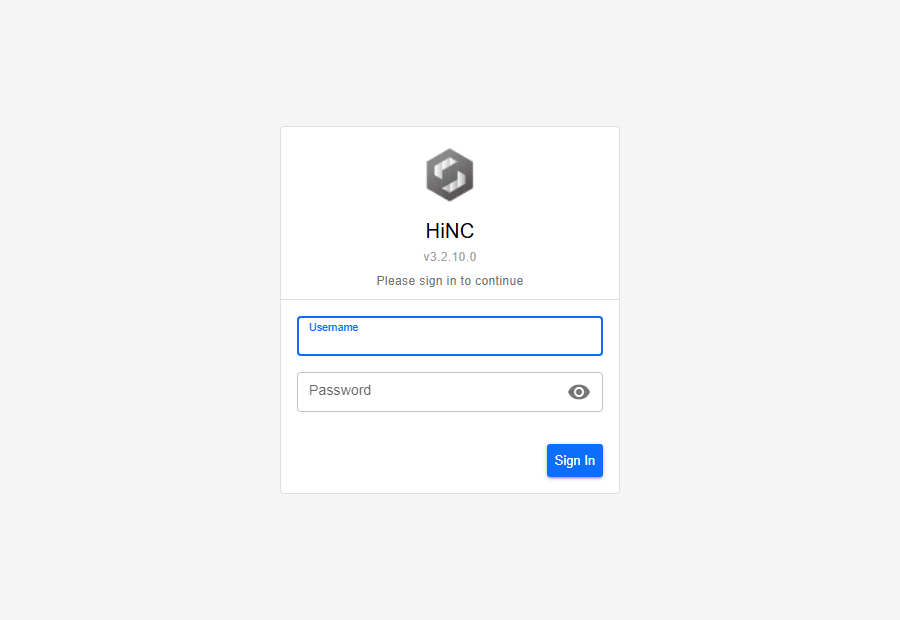
The card asks for one pair of credentials, under the prompt Please sign in to continue.
- Type the account name into Username and the password into Password. The username field already holds the focus when the card appears, and the eye icon at the right of the password field toggles the typing visible.
- Submit with the Sign In button, or by pressing Enter in either field.
- Neither field is checked in the browser, so whatever is entered — an empty pair included — goes to the service, and a refusal comes from there rather than from the form. It arrives as one red line under the password field, Incorrect username or password, and the card stays as it is.
A successful sign-in reloads the application at the screen that was wanted. When the browser was
sent to the card while trying to reach a particular screen, that address travels with it in the
card's redirect query argument — ?tree= selection included — and is where the sign-in returns
to. A browser that came to the card on its own lands on the Execution page.
Two smaller things the card carries. The grey line below the name is a version mark, the same version the menu bar shows from inside. And the card's own language is whichever this browser last used, or the browser's own language on a first visit, because the language setting belongs to the service and is behind the gate like everything else there; after signing in, the interface follows that setting — one value for everyone on the service — chosen in the Preference menu's language submenu (see Preferences).
The sign-in card at /login, in a browser holding no session. The card is all the screen holds —
none of the application frame is drawn behind it — with the version mark and the prompt under the
name, the focus already in Username, and the eye toggle at the right of Password.
When the sign-in page does not appear
Three situations account for it, in the order they are likely.
The gate is off — which is how HiNC ships. With no Auth section, or with Enabled off, the /login route redirects
every visitor back into the application instead of showing a form. From inside, the quickest tell is
the menu bar: a service with no gate carries no sign-out button.
The browser is already signed in. Its session cookie is still good, so the card is skipped and the screen that was asked for opens directly.
The service could not say. The application asks the service once, on its first navigation, whether a gate exists and whether this browser has passed it. If that question fails to get an answer, the application assumes there is no gate and lets the browser through — it fails open. On a service whose gate is in fact on, the result is a window that opens on the screen that was asked for and can then load nothing: no project, panels that never fill, and requests the service is refusing behind them. The menu bar is the giveaway — no version mark beside the brand image, and no sign-out button at the right end, because both are filled in from the answer that never arrived. In this state nothing offers a sign-in card and nothing redirects to one. Reloading the page puts the question again; it is re-asked on every navigation until it is answered, and once the service answers, the browser reaches the card in the ordinary way.
Signing out
The sign-out button is the last thing at the right end of the menu bar. It is labelled with the signed-in user name — or with Logout when the service reported no name — and its tooltip reads Log out. It is drawn only while the gate is on and this browser is signed in.
Press it to end this browser's session. The page is torn down and rebuilt at the sign-in card. If the request to the service did not get through, the service still holds this browser as signed in, so the card sends it straight back into the application — press the button again.
What ends is one browser's admission. Another browser signed in under the same account is untouched and carries on working: the service keeps no register of who is connected, so there is no notice that an account is in use elsewhere, and no limit on how many browsers may hold it.
When a session ends on its own
A sign-in belongs to the browser session, so closing the browser ends it whatever the configuration
says. While the browser stays open it lasts up to the number of hours in the Auth section's
SessionHours setting — eight in the configuration as shipped, and never less than one whatever the
setting says. Sliding expiration is on by default, and the service describes that setting as
refreshing the expiry with activity.
Nothing announces that the end is near. There is no countdown, no prompt and no way to extend. The first sign is the sign-in card, which arrives the moment a screen next asks the service for something and is refused.
Recovery is a second sign-in. The screen that was open travels in the redirect argument, so
signing in comes straight back to it; what does not come back is anything entered or arranged on
that screen and not yet saved, because a sign-in reloads the application from scratch. The session
is the browser's admission and nothing else — ending it changes what that browser may ask for, not
what the service is holding.
A session that ends whenever the browser signs in to another HiNC on the same computer — one reached
at the same name on another port and run from another folder, such as a
portable copy run alongside the installed one — is two
services sharing one cookie name: a browser keeps one set of cookies per computer name, whatever the
port, and each sign-in replaces the cookie with one the other service cannot read. Between the
stations of one installation, which all run from one folder, a
shared name works the other way: each accepts the others' sign-in, so signing in to one lets the
browser into the others without their sign-in card, and signing out of one ends the session on all
of them. Either way, give each service a cookie name of its own, Auth:CookieName;
Installing HiNC on Windows says where it is set.
Locked out
A gate that is on over an empty account list admits nobody, and it looks exactly like a mistyped password — the same single red line, for every name tried, in every browser. Nothing counts attempts and nothing locks after a bad one, so a refusal that repeats for every account anyone can think of is the symptom to read as a configuration problem rather than a credential one. The card counts nothing, but the service log keeps every refusal as a warning, with the name tried and the address it came from — read it from the file on the service's disk, since the Log Viewer sits behind the same sign-in.
The way out is one entry. Add a username and password pair to the Users list in the Auth section
of the service's configuration, then restart the service — that list is read once at startup.
The state is neither permanent nor damaging. The service runs normally the whole time it is turning browsers away; it simply has no credential to match one against.
See Also
- Basics — the rest of what is true on every screen
- The Application Window — the menu bar the sign-out button sits at the end of
- Finding Your Way — the screens a sign-in returns to, and the addresses that name them
- Preferences — the settings the service keeps for everyone on it, the language among them