Engineering View Coloring
The step coloring HiNC defines itself: two built-in color trees. Machining State sorts every step into a collision, a rapid cut, the load state of a cut, an air cut or a rapid; Machining State (No Physics) sorts it the same way without judging the load, from the play alone.
The Color Index Time Chart's property picker lists the step properties in two groups. Engineering view holds the color trees, each an integrated reading of a step: the step goes down the tree's list of conditions and takes the first leaf whose condition holds (Step Colors; Color Trees). Science view holds every other property, one quantity a row. At the top of the Engineering view stand the two trees HiNC ships:
- Machining State, key
MachiningState, fourteen leaves. A cut is judged by its load — the cutter's stress ratio, the spindle's torque, power and temperature ratios, the thermal stress ratio at the cutting edge — so the tree reads the physics, and without it a cut is Load not evaluated. A cut whose stress ratio is 100 % or more also shows its breakage probability, in a lane of its own. A play with no spindle capability to read against has nine leaves: the five spindle leaves are left out (Without a spindle capability). - Machining State (No Physics), key
MachiningStateGeometry, five leaves. It reads only what the play itself produces — whether a step collided, whether a rapid cut stock, whether the cutter touched the workpiece, whether the step was a rapid — so it colours a run without the physics and without a physics licence.
A leaf the two trees share keeps the same id and hue in both — Collision (1), Rapid cut (2), Air cut (10) and Rapid (11) with the same condition too, and leaf 8, every touched cut in the no-physics tree and the cut whose load has no value in the full one. Both trees are there whenever a project is open; they are not saved with the project and follow HiNC's version, and to change one you copy it into the project's trees.
Where they are
- The property picker of the Color Index Time Chart (Watching the Run: the Strip Charts): Engineering view first, HiNC's built-in trees at its top — Machining State, then Machining State (No Physics) — each captioned Built-in, then the project's trees and the trees a script registered, by name; Science view below it, every other property with its unit under its name. The filter narrows both groups, a group with nothing left is not shown, and Enter in the filter box picks the first row shown. Picking a tree makes it the color index: the chart draws it in one lane per leaf, and the 3D view colours the tool path and the cut faces by its leaves. Machining State reads the physics, so it is not listed while the physics options are hidden (While the physics options are hidden).
- Control Tree › Step Colors (Step Colors): the root's panel lists the built-in trees first, under Built-in, with a hint that they are defined by HiNC and read-only, not saved with the project, follow HiNC's version and are copied to be changed. A tree's row gives its name, its key and its number of leaves, and the colours of its leaves, the first fourteen of them. Unfolded, it lists each leaf with its colour, its name and its condition in one line — Is Rapid = no —, a group as a row of its own with its condition and its leaves one level in, and carries Set as color index, or the Inspecting badge while the color index reads the tree, and Copy to project tree…. A built-in tree is a row of that panel only: it has no node in the Control Tree.
- The Step Present Preference dialog, while a project is open, offers both under Engineering View, the category of every color tree (Inspecting a Step).
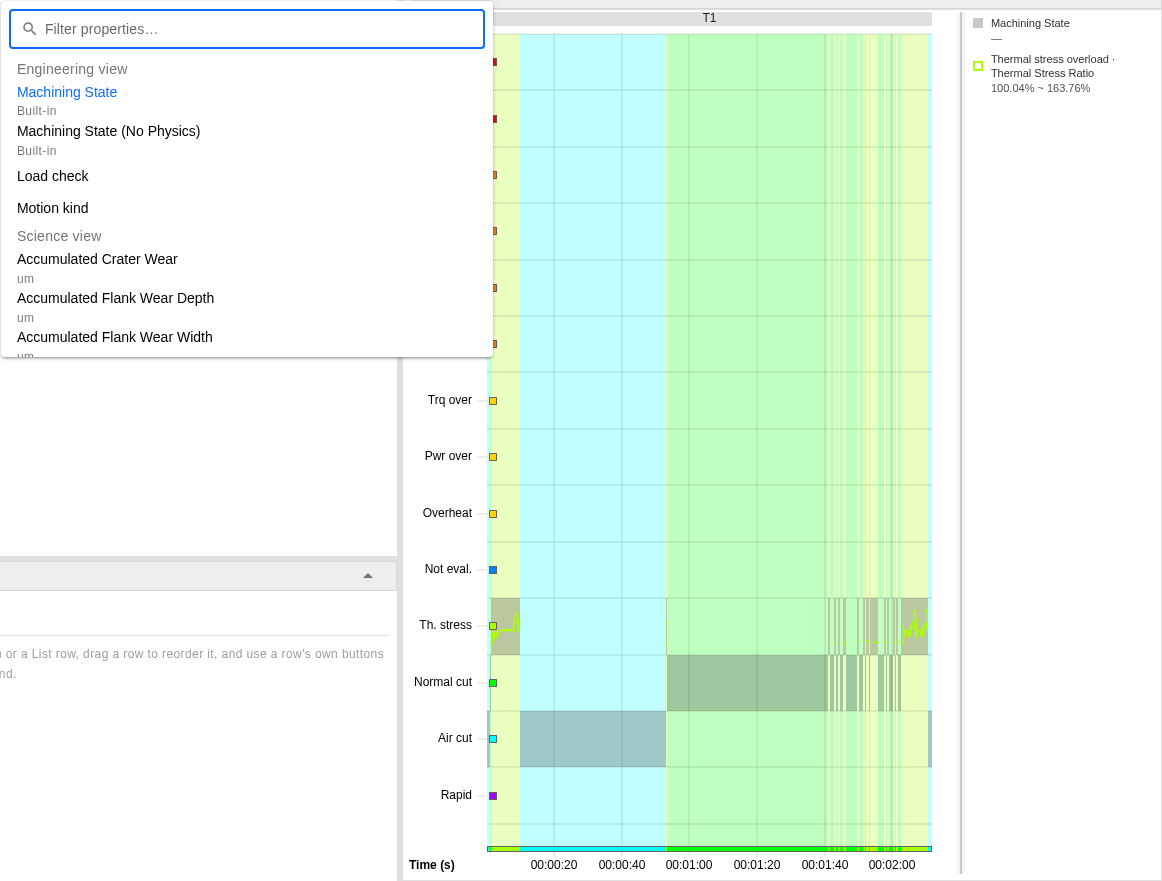
The picker at /execution, its filter empty and Machining State set as the color index: the
Engineering view lists HiNC's two trees first, above the project's tree Load check and Motion kind,
the tree the mission's script registered.
The fourteen leaves of Machining State
A step goes down the list from the top and takes the first leaf whose condition holds. The group Cutting takes every step that touched the workpiece and tries only its own ten leaves on it, so a cut never reaches Air cut or Rapid. The chart's lane prints the short name; the legend, Colors and this table print the leaf's name:
| Leaf | Short name | Takes a step when | Hue | Value in its lane |
|---|---|---|---|---|
| Collision (1) | Collision | the step has a collision text — CollisionText has a value |
0° | — |
| Rapid cut (2) | Rapid cut | the step is a rapid that cut stock — IsRapidCut is yes; a rapid that only rubbed the layer a deflected cut left is a cut (Reading Rapid cut) |
0° | — |
| Cutting (group 12) | — | the cutter touched the workpiece — IsTouched is yes |
— | — |
| Stress overload (4) | Stress over | the stress ratio is 100 % or more — StressRatio ≥ 1 |
28° | the stress ratio |
| High breakage probability (16) | Break prob | no step: its condition is Stress overload's own, StressRatio ≥ 1, so each step it holds for is Stress overload's, and the chart bars it beside Stress overload (Reading the Load Leaves) |
28° | the breakage probability, drawn over Stress overload's steps |
| Spindle torque sustained overload (5) | Trq sust. | the step is past the first step of a run over the spindle's torque limit, and its spindle has slowed to its end point — SpindleTorqueOverloadStepOrdinal > 1 and SpindleSlowdownEndpointRatio ≥ 1 |
28° | the spindle speed deviation |
| Spindle power sustained overload (13) | Pwr sust. | the step is past the first step of a run over the spindle's power limit, and its spindle has slowed to its end point — SpindlePowerOverloadStepOrdinal > 1 and SpindleSlowdownEndpointRatio ≥ 1 —, the first step of a run over its torque limit as well; a step past the first of a torque run is Spindle torque sustained overload's already, and this leaf holds beside it |
28° | the spindle speed deviation |
| Spindle torque overload (6) | Trq over | the max spindle torque ratio is over 100 % — MaxSpindleTorqueRatio > 1 |
50° | the spindle speed deviation |
| Spindle power overload (14) | Pwr over | the max spindle power ratio is over 100 % — MaxSpindlePowerRatio > 1 |
50° | the max spindle power ratio |
| Spindle overheat (7) | Overheat | the spindle working temperature ratio is 100 % or more while the max spindle power ratio has a value — SpindleWorkingTemperatureRatio ≥ 1, MaxSpindlePowerRatio has a value |
50° | the spindle working temperature ratio |
| Load not evaluated (8) | Not eval. | the stress ratio, the max spindle torque ratio or the max spindle power ratio has no value | 210° | — |
| Thermal stress overload (15) | Th. stress | the thermal stress ratio is 100 % or more — ThermalStressRatio ≥ 1 |
80° | the thermal stress ratio |
| Normal cutting (9) | Normal cut | otherwise: every other cut | 120° | — |
| Air cut (10) | Air cut | the step touched nothing and is no rapid — IsTouched is no and IsRapid is no |
180° | — |
| Rapid (11) | Rapid | otherwise: a rapid that touched nothing | 280° | — |
The order is the severity, so the top lane a stretch reaches is its worst state: a rapid that
collided and cut is a Collision, a rapid that cut a Rapid cut before it is a cut, a feed move
that touched nothing an Air cut. The leaves further down that hold on the step as well are barred
beside it on the chart (Watching the Run: the Strip Charts): a cut over its stress limit whose
spindle also runs too hot bars Stress overload, High breakage probability beside it, and
Spindle overheat, a cut over both spindle limits both spindle leaves, a step on either sustained
spindle leaf the yellow leaf of the same cause, and a feed move that collided while touching nothing
Collision and Air cut (a rapid that collides in the air bars Collision alone);
Normal cutting and Rapid, which take every
step left to them, hold beside no other leaf. The two dangers are pure red, the colour HiNC keeps for danger.
They mark failed machining, or a process that a change surely improves; a leaf under them that takes
a cut at or over a limit marks bad machining, not necessarily failed machining
(Bad Machining, Not Necessarily Failed Machining).
Collision needs the collision detection on — the mission's Collision Detection setting, or
EnableCollisionDetection in a script — and Rapid cut is the play's rapid-cut check, the lines
it reports as Play-RapidCut--Detected (Reading Rapid cut). The thresholds are
fixed in the built-in tree; to change one, copy the tree into the project's trees
(Copying one into the project's trees). The table writes each
threshold as the tree keeps it, a ratio's as the ratio, 1 for 100 %; the Step Colors root and a
copy's editor show it in percent, Stress Ratio ≥ 100%. Step Properties prints
a leaf's id with its name, 4 · Stress overload, and the step file carries the id; no leaf has the id 3. The ids, the
conditions and the hues are the same in every language; the names follow the app language.
Reading the load leaves
Machining State judges a cut by its load. A stress ratio of 100 % or more is a Stress overload at once, and the lane right under it, High breakage probability, is barred beside it and draws the breakage probability over the same steps, taking no step of its own. A spindle over its torque or power limit is a Spindle torque overload or a Spindle power overload, yellow, and HiNC simulates how far the spindle slows under the cut: past the first step of the overload, a step whose spindle has slowed to its end point — the speed at which the cutter breaks or the chip has no room — is a sustained overload, orange. The thermal stress ratio follows. What each leaf reads, and what the reading does not cover, is Reading the Load Leaves.
The five leaves of Machining State (No Physics)
The no-physics tree keeps Collision (1), Rapid cut (2), Air cut (10) and Rapid (11) of
the full tree, in that order and with their short names, and in place of the group Cutting a single
leaf, Cutting (load not evaluated) (8), 210°, which takes every step that touched the workpiece —
IsTouched is yes — and whose lane prints the short name Cutting. Its name says what it leaves out:
without the physics the tree judges no load, so an overloaded cut is a cut here. Every Rapid cut
touched the workpiece, so the chart bars Cutting beside it. IsRapid is yes or
no on every step, so in both trees Rapid takes every step the leaves above it leave, and a step
falls into no leaf only when a read fails (see Known limits).
Reading Rapid cut
At the project's rapid-cut threshold of 0, the default (RapidCutVolumeThreshold_mm3;
Geometry Validation), a rapid that touches the stock is a
Rapid cut in both trees. A touched rapid that is not a Rapid cut is a cut: Cutting (load
not evaluated) in the no-physics tree, a leaf of Cutting in the full one, judged by its load.
The exceptions:
- Until its line is reported. The check folds the rapid steps of one NC line and reports the line when a feed step or another line follows it, or the play ends. Until then its touched rapid steps are cuts, and they move to Rapid cut once the line is reported.
- Under a threshold above 0, a line whose rapid steps removed less than it is not reported, and its touched rapid steps stay cuts: the same lines the warning leaves out.
- A graze straight back up the tool axis. Under the Feed Per Cycle or Feed Per Tooth
motion resolution, an APT cutter drawn straight up its own axis touches the stock only where it reaches
deeper than 0.001 mm into it: a shallower graze along such a retract — what a program's decimals
leave against a wall the cutter itself cut — is a Rapid at a rapid and an Air cut at feed.
The 0.001 mm is a fixed depth of the engine, not the project's threshold: no value of
RapidCutVolumeThreshold_mm3turns such a graze into a Rapid cut. A sideways or downward graze, and any graze under the Fixed motion resolution, touches: a Rapid cut at a rapid — unless it is the rub of the next exception —, a cut at feed. Whether a graze touches at all can differ between two plays of one program (Contact on a grazing step). - A rapid that rubs the wall a deflected cut just left. With the deflection transformation on
(
EnableDeflectionTransformation, one half of Feedback Mode), a cut leaves its wall off the programmed one by the tool's deflection, and once the load goes the rapid steps after it stand where the program has them, inside that layer, as a real tool springs back and rubs its own wall. Under the Feed Per Cycle or Feed Per Tooth motion resolution, with an APT cutter, a rapid step right after such a cut whose contact goes no deeper than the tip deflection the step before it was moved by, plus 0.001 mm, removes the layer and is touched (IsTouchedis yes), but the rapid-cut check leaves it out: it adds nothing to aPlay-RapidCut--Detectedline, and on a line with no other contact it raises none,IsRapidCutis no and the step is a cut — a leaf of Cutting such as Normal cutting in the full tree, Cutting (load not evaluated) in the no-physics tree. A rapid that reaches deeper into the stock is a Rapid cut as before. The first step after a tool change gets no such allowance, and the Fixed motion resolution and a cutter without an analytic shape make no such exception. - A rapid plunge before the spindle has turned. A rapid into the stock before any step has run with a spindle speed is the collision detection's while it is on: a Collision, on no rapid-cut line. With the detection off the rapid-cut check counts it, and it is a Rapid cut. With the detection on but no collision licence it is neither: the detection finds nothing and the check leaves the step to it, so it is a cut, and with the spindle standing one the physics does not judge — leaf 8 in both trees.
Reading the notes
A chart drawing a built-in tree says, in its Colors dropdown under In the display range, what the leaves cannot show — collision detection, a CSV program, and for Machining State the load — and under review each tree carries one line of its own. The notes cover the steps since the last reset; what each line says is Reading the Notes.
While the physics options are hidden
With Preference › Show Physics Options off, or without a physics licence, the interface hides the physics, and Machining State with it:
- The picker and the Step Present Preference dialog leave it out, Machining State (No Physics) their one built-in tree. The Step Colors root still lists both, and Set as color index works on either; the full tree's conditions on the physics show Physics hidden there, each threshold as the tree keeps it — Physics hidden ≥ 1, the stress ratio's 100 % —, as a project tree's do, and so do a copy's in its editor.
- While the color index is Machining State, the Color Index Time Chart draws Machining State (No Physics) in its place — its five lanes, in the colours the full tree gives the same leaves — and the picker shows that tree as the current pick. The color index stays Machining State, and once the physics options are shown again the chart draws it.
- The 3D view goes on colouring by Machining State. With the physics licensed and its options only hidden, the physics runs, and a cut the chart shows as Cutting (load not evaluated) can be a Stress overload on the canvas; without the licence it does not run, and the two agree.
- The Colors dropdown shows Machining State, the 3D view's tree: its fourteen leaves, their
colours and its notes, read again when the dropdown opens. Its Steps and Time share are the
chart's, by leaf: every cut counts under Load not evaluated, and the nine leaves the no-physics
tree lacks read 0 and
0%— four in a play without a spindle capability, whose tree has nine leaves.
Without a spindle capability
The spindle's ratios, its temperature and its speed under load are read against the project's spindle capability (Spindle Capability). A play with none to read them against has no value under them on any step. HiNC knows that from the setup before a step is read, and leaves those quantities out once rather than reading no value on each step. That is a play whose spindle capability:
- is missing: the project has none — it never set one, or a script or an HTTP client set it to none — or the capability file the project names cannot be read. The spindle's power and energy are not evaluated either.
- gives no limit at any speed: it has no continuous torque curve or no continuous power curve, or a curve it reads holds no point. The spindle input power, the meter power and the two accumulated energies still read; the spindle's limits, its temperature and its speed under load do not.
A capability that gives no limit at some speeds only — its curves without a point on one side of the gear shift speed — is not such a play: the steps on the other side are read (Known limits). A project never given a capability is such a play until the machine's is loaded (Spindle Capability). In such a play:
- Machining State has nine leaves. The five spindle leaves — Spindle torque sustained
overload (5), Spindle power sustained overload (13), Spindle torque overload (6), Spindle
power overload (14) and Spindle overheat (7) — are not in the tree: the chart draws no lane for
them, and the legend and Colors do not list them. The nine left keep their ids, their order and
their colours: Collision, Rapid cut, Stress overload, High breakage probability,
Load not evaluated, Thermal stress overload, Normal cutting, Air cut and Rapid.
The step file's
MachiningStatecolumn never holds 5, 6, 7, 13 or 14. The Step Colors root still shows the tree as written, all fourteen leaves. - Load not evaluated takes a cut only when its stress ratio has no value. The missing spindle ratios are not asked of each step, so a cut whose stress ratio is under 100 % goes on to Thermal stress overload or Normal cutting, by its thermal stress ratio. Normal cutting then says nothing of the spindle: the spindle was not judged.
- The Colors dropdown says why, once, in the spindle capability's line: the file that could not be read, no capability set, or the capability, by name, that has no continuous curve or gives no limit; that the spindle leaves are not in this tree and the spindle's quantities not in the lists; and what Load not evaluated takes. The line is there whatever the chart holds, before a step has played and under review as well (Reading the Notes). The play's warning at its start is as before.
- The lists leave the spindle's quantities out: the property picker's Science view, the Availability chart's spindle torque, spindle power and spindle working temperature lines, and the rows of Step Properties. While the color index is one of them, the chart draws the first property of the Science view in its place, as while the physics options are hidden, and the color index stays as it was set. The Step Colors editor's key choices and the Step Present Preference dialog still offer them, since what is written there serves the plays that have a capability. The step file keeps every column, and a step's values, as a script reads them, are what they were.
- A project's tree and a script's follow the same rule. A term on a spindle quantity that needs a value — a comparison, or Has value — holds on no step: a node whose All hold has one is left out with everything under it, and an Any holds drops it. A No value term on a spindle quantity is dropped as well, the note saying it once. A condition left with nothing but such No value terms holds on every step that reaches it, and an Otherwise after it in its list is left out; an Any holds left with no term at all is left out. A leaf that shows a spindle value shows none. When the rule changes anything, the tree's Colors dropdown says so in one line: the reason, the nodes left out, the nodes whose conditions lost terms and the leaves that show no value. The tree's panel keeps the tree as written.
- With a capability that gives limits, nothing changes: fourteen leaves, each step where it was. Once a capability is loaded, or the one there corrected, the leaves and the lists come back; the spindle temperature and the speed under load the steps stored are filled by a recompute (Recomputing a Finished Strip) or another play.
Copying one into the project's trees
Copy to project tree…, on a tree's row in the Step Colors root's panel or in the chart's Colors dropdown, copies a built-in tree into the project's trees under a new key and name. The copy is the project's own tree, saved with the project and editable, and HiNC's later versions leave it as it is; it carries none of the built-in trees' notes. The dialog, what a copy keeps and how a copy made on an earlier version differs are on Copying a Built-in Tree.
Over the HTTP API and in scripts
The trees are step properties like any other, under their keys MachiningState and
MachiningStateGeometry: the Color Index Time Chart, the 3D colours, Step Properties and the step
file read them as they read the project's trees.
- The routes.
GET api/execution/step-color-treeslists both underbuiltInTrees,MachiningStatefirst, withorigin: "builtIn"andreadOnly: true; aPUTor aDELETEunder either key answers409StepColorTreeBuiltIn;POST api/execution/step-color-trees/{key}/copycopies one, the body{ "newKey", "name" }optional; a preview by either key works as for any registered tree. The strip chart'scolorTreeand the color guide'streecarry the notes as{ code, message, args }, and the chart'scolorTree.standsInForisMachiningStatewhile the no-physics tree stands in for it. The shapes are in Step Color Trees over HTTP. - The keys are reserved.
MachiningStateandMachiningStateGeometryare taken like a built-in step property's key: a step variable, a color tree, a script'sRegisterStepVariableorRegisterStepColorTree, and a CSV or mapped column under either is refused or skipped. A project file edited by hand that holds a tree or a step variable under one is read and saved as it is, listed as Key of a built-in property, and never registered; such a tree can be renamed away or deleted, but not replaced under the key. - The step file of a play with a project open has a column for each tree:
MachiningStateholding each step's leaf id, 1, 2, 4, 5, 6, 7, 8, 9, 10, 11, 13, 14 or 15 and never 16, the id of High breakage probability, which takes no step — nor 5, 6, 7, 13 or 14 in a play without a spindle capability —, andMachiningStateGeometry, 1, 2, 8, 10 or 11, the same in every language (Step Field Reference). The engine's messages name a tree by its key,[MachiningState], and the 3D view shows the leaves' colours alone: no colour scale bar, no legend.
See Also
- Copying a Built-in Tree — copying a built-in tree into the project's trees to change it: the dialog, what the copy keeps, and copies made on earlier versions
- Reading the Load Leaves — how Machining State reads a cut's load, and the limits of that reading
- Reading the Notes — what a built-in tree's Colors dropdown says the leaves cannot show, since the last reset
- Step Colors — the color trees, the Step Colors root that lists the built-in trees first, and the panel a copy opens in
- Watching the Run: the Strip Charts — the Color Index Time Chart, its two groups of properties and its Colors dropdown
- Step Color Trees over HTTP — the built-in trees over the HTTP API: the list, the copy, the read-only answer, the stand-in and the notes
- Step Colors Branch — how the root's panel lists the built-in trees and copies one
- Step Colors REST — how the server answers for the built-in trees, and where their notes come from