Physics and Feedback Mode
The mission's Physics command decides two things for everything played below it: whether physics is simulated at all, and how each step's cut is computed — in Feedback Mode, or in Ideal Mode, the default. The other command kinds are on The Other Commands.
Where it is
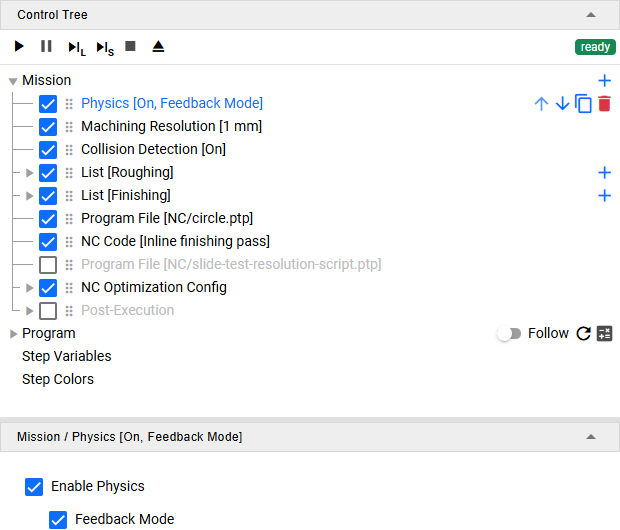
The Execution page's Mission branch of the Control Tree. Physics is one of the Setup category's commands in Add Command. A new project's mission already has one, and the layout a project starts from puts it on the mission's first row, above everything it governs. Selecting its row shows its panel: the Enable Physics checkbox and, indented under it as its sub-option, Feedback Mode, which shows only while Enable Physics is ticked. Show Physics Options, on or off, changes neither.
The row states what the command will set:
| Row reads | Enable Physics | Feedback Mode |
|---|---|---|
Physics [On] |
ticked | not ticked |
Physics [On, Feedback Mode] |
ticked | ticked |
Physics [Off] |
not ticked | not shown, whatever it holds |
Enable Physics
Ticked — the default — the programs below the command are played with physics: the cutting forces, and the temperatures, wear and stress ratios computed from them. Unticked, they are played without it, and its sub-option, Feedback Mode, is not shown. Without the advanced-physics licence the checkbox is disabled.
Feedback Mode
Feedback Mode decides whether each step's cut is computed on the ideal geometry or with the physical response fed back, and the price is play time.
Not ticked — the default — is Ideal Mode. The program's steps are computed overlapping one another, so a play runs as fast as it can: the chip thickness counts the whole span from the cutting edge back to where the previous tooth passed as stock, and the tool cuts exactly where the program puts it.
Ticked turns on both halves together:
- the chip thickness counts only the stock that was still there after the previous tooth, so where part of that span was already cut away, the chip reads thinner and the force lower;
- the tool's deflection feeds into the next step: the step after a loaded one cuts with the tool bent by that load, so the stock left behind and the geometry difference show the bent tool. The toolpath, the feed and the feed per tooth stay as programmed, and a tool just changed starts straight. A step's CL then reads the bent tool's tip, which a comparison of two runs has to allow for (Tool-tip offset).
Each step then waits for the one before it to be computed, so a play is slower. The cutting forces and everything computed from them — temperatures, wear, stress ratios, the NC optimization's feeds — and the shape left behind can read differently from the same mission played unticked.
Hovering over the checkbox shows a short reminder of the two modes.
Feedback Mode is a sub-option of Enable Physics. Without physics there is no cutting force to compute the chip from or to bend the tool with, so the checkbox sits indented under Enable Physics and shows only while that is ticked. With Enable Physics unticked it is not shown, and the command turns Feedback Mode off when it runs, whatever the box held; the value is kept, so ticking Enable Physics again shows the box as it was. Shown, it is disabled without the advanced-physics licence, still showing its value.
Choose before playing. The choice is the command's, saved with the project's mission, so the project plays the same way on every computer whose licence includes Feedback Mode. The command sets the mode when the run reaches it, like every Setup command: the programs below it play in that mode, and the steps already played keep the mode they were played under. Disabling or deleting the Physics row does not turn Feedback Mode off: the project stays in the mode the command set the last time it ran. To go back to Ideal Mode, keep the row, untick Feedback Mode and play again. To compare the two modes, play the program once with the box ticked and once without, under a licence that includes Feedback Mode. A project saved before the checkbox existed opens with it unticked. With the box ticked under such a licence, NC optimization works from the chip model the play stored, and asks you to play the program again when its steps were played unticked, under a plan without Feedback Mode or by an earlier version (NC Optimization).
Scripts and the web API can still set the two halves one at a time — a script as
EnableChipStockTruncation and EnableDeflectionTransformation, the web API as
chip-stock-truncation and deflection-transformation — but the Physics command sets both to its
own value when it runs, so a value set before the play, by the web API or in the project file, is
replaced. To turn on one half alone, set it in a Script entry placed below the Physics
command. The Physics command's panel
lists every way to reach them.
Under a cloud plan without Feedback Mode — the Free plan — the checkbox, shown under a ticked
Enable Physics, is disabled, still showing the command's value, with a line under it saying that
the plan does not include Feedback Mode. A mission whose Physics command has it ticked then plays,
and is optimized, as in Ideal Mode, and the first step played after each reset says so with the warning
FeedbackMode--NotInPlan; the value stays in the project for a plan that includes Feedback Mode
(Signing In with a Cloud Account).
See Also
- The Other Commands — the other four Setup commands, and the rule all five share: each takes effect from its own position in the list onward
- A Mission That Resumes — the layout that puts the Physics command on the mission's first row
- PhysicsCommand Panel — the component behind the Physics command: Enable Physics and the Feedback Mode sub-option under it, when the sub-option shows and when each is disabled, and every other way to set the two switches
- Recomputing a Finished Strip — when a change made after a play in Feedback Mode needs the program played again
- Evaluating Process Machinability — how the tool deflection Feedback Mode carries into the next step is computed, and the compliance behind it
- Running a Simulation — the rest of running a job