The Other Commands
Beyond putting a program into a run, a mission can change the session's settings part-way through, steer the optimizer, write out what the run produced, and drive the session from a script.
Where they are
The Execution page's Mission branch of the Control Tree, all from the same Add Command — the + on the Mission row or on a List row. Of the Program category's four commands, the two that put a program into a run are on Playing a Program and the other two — Manual Tooling and Script — are below; the Flow category's one command is on Building a Mission.
Settings, one per command
The Setup category holds five commands, each carrying one setting:
| Command | What it sets | Default |
|---|---|---|
| Machining Resolution | the meshing resolution of material removal, in mm | 0.125 mm; added on the Mission row, the coarser of that and the width the licence allows the workpiece (added on a List row, 0.125 mm) |
| Machining Motion Resolution | how a motion is sampled into steps | Feed Per Cycle |
| Collision Detection | whether collisions are detected | on |
| Pause on Failure | whether the run stops at a failure | off |
| Physics | whether physics is simulated | on, where the advanced-physics licence is held |
Each takes effect from its own position in the list onward. A program above one plays under whatever was in force before it; programs below it play under the new value, until something further down changes the session again.
That is the reason these are commands rather than project-wide settings, and it is worth using: put a coarse machining resolution above the roughing programs and a fine one above the finishing programs, and one run does both at the resolution each deserves.
Four of the five are a single field or checkbox. Machining Motion Resolution has more to say and carries its own editor: a type — Feed Per Cycle, Feed Per Tooth or Fixed — and, for Fixed, a linear resolution in mm and a rotary one in degrees.
Machining Resolution's dropdown offers the same powers-of-two ladder as the workpiece's Initial
Resolution. Under a licence that caps the resolution, the rungs finer than the width the licence
allows the workpiece are greyed rather than hidden, with a caption naming that width; a value already
finer than it stays selectable, and a second caption says the width the cuts then run at. A stock
already finer than the licence — a .wct read at its own resolution, say — is cut no finer than its
own width: a request finer than both the licence and the stock is clamped to the finer of the two
widths, with the warning, so the rungs greyed are the ones finer than that width, and a caption says
that the stock standing is already finer than the licence. What the cap is, and why a command added
on the Mission row starts at the licensed width, is Mesh Resolution.
Note
General Config is not on the menu, and it is not missing. It was one command carrying all five of these settings at once, and the five above replace it. A project that still stores one loads as those five commands in its place, and saving from then on writes the five. Where the bundle named a meshed geometry file or had reading one switched on, a Record Meshed Geometry command set to Read precedes them — ticked only where reading was switched on. There is nothing to add and nothing to look for.
The optimizer, as a step
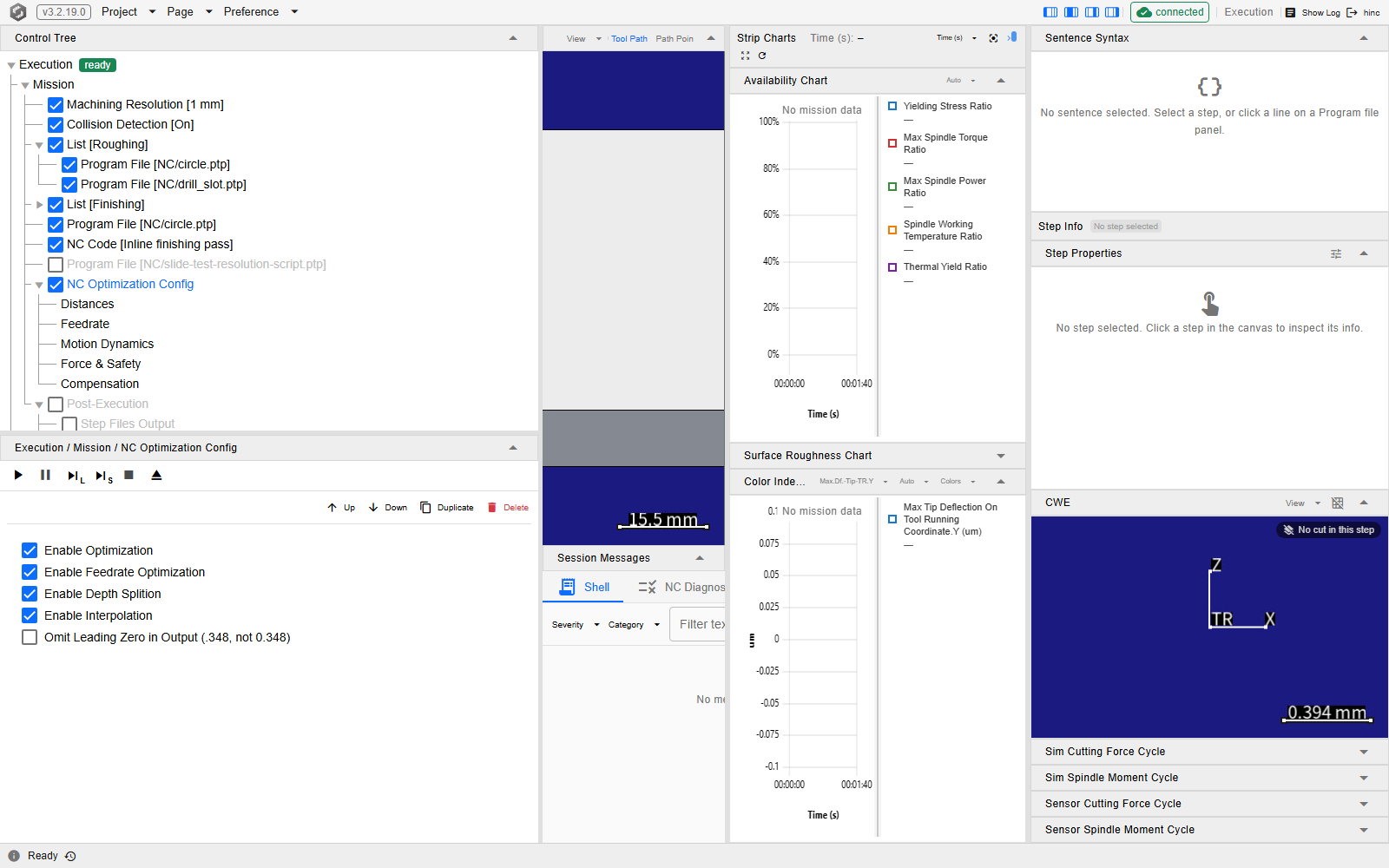
NC Optimization Config is the Optimization category's one command, and it exists so the optimizer's settings sit at a point in the run rather than over all of it. Everything played below it optimizes under those values, and a second one further down re-points them mid-mission.
When the command runs, it hands the run a copy of its values. A Script entry below it that sets
an Opt… value, or an NC-embedded @@Opt… in a program below it, changes that copy alone: the
command keeps the values set on it, the project saves those, and the next run starts from them again.
An edit to the command while a run plays takes effect when the command next runs.
Its own node carries one setting, Omit Leading Zero in Output, which only formats the numbers written out. Everything that steers the optimizer sits on the nodes beneath it, nested the way the optimizer uses them: a switch is a node with its own checkbox, and the nodes under a switch act only while it is ticked — they dim while it is not.
| Node | Checkbox | What is on it |
|---|---|---|
| Enable Optimization | yes | turns the optimizer on for what plays below the command; also the extended pre- and post-distances, the rapid feed and the feed assignment ratio, which act even with feedrate optimization off |
| Enable Feedrate Optimization | yes | adjusts each cut's feed to the force and safety targets; its values are on the four nodes under it |
| Feedrate | — | the feedrate floor and ceiling and the feed-per-tooth bounds |
| Floor at Source Feedrate | yes | keeps every cut at or above a share of the feed the program itself commands there — 80 % unless you change it |
| Motion Dynamics | — | the maximum acceleration |
| Force & Safety | — | the preferred cutting force and the yielding, thermal-yield, spindle-torque and spindle-power safety factors |
| Enable Interpolation | yes | lets one line be split into several, so the feed can change within the line |
| Compensation | — | the forward, side and depth compensation switches |
Enable Optimization is the only node directly under the command. Enable Feedrate Optimization, Enable Interpolation and Compensation hang under it, and the four nodes from Feedrate to Force & Safety under Enable Feedrate Optimization.
Floor at Source Feedrate is for a program that already runs in production. Below 100 %, the force and safety targets can still slow the heaviest cuts down to that share of the programmed feed — that is what spares the tool — while no cut runs slower than that, so the share caps how much longer the run can take. At 100 % the optimizer only speeds cuts up: the run takes no longer, but no cut is relieved, so the tool gains nothing. Where the floor keeps a cut above a target, the run's messages say how many steps, per target.
The command's own checkbox, like every command's, decides whether the mission runs this command — not whether the optimizer is on, which is the Enable Optimization checkbox under it. While Show Physics Options is off, the whole command is hidden from the tree: the optimizer works from the simulated cutting force, so without physics it has nothing to work with.
The command takes no title: its row always reads NC Optimization Config. What each quantity means, and why an optimized result can look wrong, is NC Optimization.
The demo mission's optimizer command, at /execution?tree=execution/mission/7. In this mission it
sits below both List groups and the three loose entries after them rather than above them, so
the ordering rule at the top of this section is what decides how much of the run it reaches. Its
own panel below the tree, headed Mission / NC Optimization Config, holds only the output
spelling; the switches and value nodes are indented under it in the tree, where Floor at Source
Feedrate is unticked and dimmed. Because the row is selected, its move, duplicate and delete
buttons show at its right edge.
Writing out what the run produced
The Output category holds five commands: Post-Execution, Record Meshed Geometry, Export Meshed Geometry (STL), Record Play Result and Review Play Result.
Post-Execution's name says what it consumes, not where it goes. It is an ordinary entry in the list, not an end-of-run hook, and everything it writes is derived from what the session has played above it. Put it after two programs and it covers both; put a second one halfway down the list and it writes an interim snapshot of the same accumulating run. Its placement is the whole question.
Five outputs hang off it, each a child node whose own checkbox switches that output on:
| Output | What it writes | Default template |
|---|---|---|
| Step Files Output | the step-series data of what has played | Output/[NcName].step.csv |
| Shot Files Output | time-sampled series at a period you set | Output/[NcName].shot.csv |
| Optimization Output | the optimized programs | Output/Opt-[NcName] |
| CL → NC Writeback | Fanuc NC re-synthesized from what was played | Output/[NcName].nc |
| Geometry Difference Detection | a comparison of the workpiece geometry at a radius you set | — |
[NcName] in a template is replaced by the file name, extension included, of the program each step
came from — a subprogram's or a macro's steps go to a file named after the called program, not after
its caller. [NcFile] is replaced by that program's project-relative path with each / turned into
-, which keeps two programs of the same name in different folders apart.
A template is a path relative to the project folder — the folder that holds the project file — and
an absolute path is used as it is; folders on the way that do not exist yet are created. Neither
placeholder is required: Output/run-1/step.csv is a template too, but every program of the run
then writes to that one name, so with more than one program it keeps only the last stretch (point 4
below).
Four things to know before switching them on:
- Two of the five are visible only while Show Physics Options is on in the Preference menu — Shot Files Output and Optimization Output. See Preferences.
- The shot file's time resolution is a sampling period, not the machining resolution, and it sets the accuracy ceiling of that data. A fine period makes a large file: a six-cut program writes about 13 MB at the default 1 ms and about 128 MB at 0.1 ms. To size one before switching it on, allow roughly 13 MB for every minute of simulated machining on a three-axis machine at 1 ms — a forty-minute program writes over half a gigabyte.
- The CL → NC writeback needs the CL played on an XYZABC chain, so the Program File command that plays it goes above this command. It re-serializes every control file the session played, so an NC play is written back too, and the converted files appear on the Program branch as their own nodes — see The Program Branch.
- Step and shot files are written per source program, and a file is recreated every time the
source changes. The writer walks the run's steps in order and opens its output afresh —
truncating it — whenever a step comes from a different program than the step before it. A
subprogram called three times, with the caller moving between the calls, therefore keeps only
its third call in its file, the caller's file
keeps only what the caller did after its last call, and a template without
[NcName]or[NcFile]keeps only the last stretch of the whole mission. To keep every call, play each call in a run of its own and move the files away in between, or follow each call's Program File with its own Post-Execution whose templates point at a folder of their own. On a three-axis machine with physics on, a step file runs to roughly 1.7 KB per step, so a run of a quarter of a million steps writes about 400 MB; with physics off the rows are shorter.
Every field stays editable whether or not its checkbox is ticked: the checkbox decides what runs, not what can be prepared. The outputs are written in an order of the command's own — shot files, step files, optimization, the writeback, then the geometry difference — which is not the order the tree lists them in, and which matters only if you are reading their timestamps.
Each file written is announced on Shell, and a write that wrote nothing says so. Every step or
shot file a writer opens is a Creating file[…] row between the writer's starts and finished
rows — WriteStepFile starts. and WriteStepFile finished. for step files, WriteShotFile … for
shot files — with the path the template expanded to. A writer that opened no file ends on a warning
instead of finished: StepFile-Write--NoFile or ShotFile-Write--NoFile, which counts the
positions the step strip held. Either nothing had played above the command, or what played
built no machining step — A finished run with nothing to show
tells the two apart. And the writers walk the session's strip, not only the latest run: a run
started without a Reset plays on top of the one before it, so a Post-Execution below the programs
walks both plays' steps, and one above them the earlier play's alone. What a file keeps of the two
follows point 4: a lone program played twice keeps both plays, while in a mission of several
programs — an NC Code entry holding a tool change is one of them, its change being a step of
its own, which a Manual Tooling entry avoids — each
file is reopened by the second play and keeps that play's steps alone.
The demo mission's Post-Execution command with Step Files Output selected, at
/execution?tree=execution/mission/8/step-files. Each output is a child node with its own
checkbox — that tick is what switches the output on — and the template field for the selected one
sits in the panel below, headed Mission / Post-Execution / Step Files Output. In the demo the
Post-Execution row itself is greyed with its checkbox cleared, and its outputs stay editable
all the same. They are listed under it, greyed with it — Step Files Output, Shot Files Output, the
ticked Optimization Output and CL → NC Writeback — before the pane's edge cuts off the next.
![The Control Tree on the Execution page, with the six transport buttons and a green ready badge above the tree and the Mission root row carrying a + at its right edge; the command rows run down past NC Optimization Config, expanded over a collapsed, ticked Enable Optimization, to a greyed Post-Execution row with its checkbox cleared, expanded over its greyed output rows — Step Files Output, Shot Files Output, a ticked Optimization Output and CL → NC Writeback — and a row cut off at the pane's bottom edge; the panel under the tree is headed Mission / Post-Execution / Step Files Output and holds one Step File Template field reading Output/[NcName].step.csv, with a line of help under it on how the path and [NcName] are read](the-other-commands-img/post-execution.en.png)
Keeping the workpiece between runs
Two of the Output category's commands take the workpiece as it stands at their own point in the list. Record Meshed Geometry stores it in the application's mesh format so a later run can pick it back up; Export Meshed Geometry (STL) writes an STL for something outside the application to read.
Record Meshed Geometry carries a path — Cache/Workpiece.wct by default, because a recorded mesh is
a rebuildable by-product of a run rather than a project asset — and one of four actions:
| Action | What it does |
|---|---|
| No Action | nothing; the entry is a placeholder |
| Read | always loads the file into the session |
| Write | always writes the session's geometry to the file |
| Read On First Or Write | reads the file if it exists and no machining step has been produced since the session was last reset; otherwise writes |
The condition on the fourth is what makes the command usable more than once in one mission: the first such entry reads, and every one below a program writes. It is a property of the session, so a run started without a Reset inherits the previous run's steps and every such entry in it writes — the first one included. Building a mission around that is A Mission That Resumes.
Writing builds the mesh if the run has not built it yet, at the workpiece's Initial Resolution. A Machining Resolution command above or below the record does not change the width of the stock it writes; it governs how finely the programs below it cut. A missing file is not an error: writing it is what a run does. Reset on the command's panel deletes the file it points at, so the next run records afresh.
Export Meshed Geometry (STL) takes a path — Output/MeshedGeom.stl by default, since an export is
something you asked for rather than a cache — and a resolution in millimetres for the triangles it
writes; 0 uses the display mesh resolution. What it triangulates is the same mesh Record Meshed
Geometry writes, built the same way — at the workpiece's Initial Resolution where nothing has cut
it yet — so the STL resolution decides how finely that mesh is tessellated, not how finely it was
cut.
Recording the play and reviewing it
Record Play Result writes what the programs below it play — every step, tool path position and program block — into a result folder; Review Play Result later shows that play again from the folder, without playing it.
Record Play Result's Action is Begin Recording: the programs below it are recorded until the
mission ends, the player stops, or an End Recording entry completes the folder. Put it above the
programs it is to cover; below every program it records nothing and says NcResult-Record--Empty on
Shell. Its Result Folder, relative to the project folder, defaults to
Output/results/[NcName]-[timestamp] and receives result.db and, when the workpiece was meshed, the
finished stock finish.wct. The row reads
Record Play Result [Begin Recording · Output/results/[NcName]-[timestamp]].
Review Play Result's Action is Open Review or Close Review. Open Review's Result Folder
left empty is the newest completed result: the one a recording still open at that point completes —
the review ends the recording first, as in a mission of Record Play Result, the programs, Review Play
Result — else the newest completed folder under Output/results. Opening clears the run and rebuilds
the strip, the steps and the charts from the file, and the finished stock shows each cut face in the
colour of the step that cut it, a click on the face selecting that step as during the play (a result
recorded without the stock's node map shows the stock plain, and so do the faces a geometry
difference compared before the recording ended); what the file does not hold reads
Not in the play result, under a Reviewing … banner. Put it last in the mission: the review
stays open until the next reset — Reset, a Close Review entry, a project switch — and a program
played while it is open ends the run with Player-Run--Fault.
In a Script entry, Begin Recording and End Recording are BeginNcResultRecording(…) and
EndNcResultRecording(), and the mission's end completes a recording a script began as it does the
command's.
Result folders are never deleted on their own. Each recording adds one; a Script entry
clears them: DeleteNcResult("Output/results/…") deletes one — the files the recording wrote, then
the folder if nothing else is in it — and DeleteOrphanNcResults() clears the incomplete ones under
Output/results, or under the folder you give it: a folder whose recording never ended is deleted
unless another application is still recording into it, and one whose completion another application
held up is completed. A recording lists the incomplete folders on Shell as it begins
(NcResult-Record--OrphansFound).
Mapping measured data onto the run
The Mapping category holds two commands. Each reads one CSV file of the project folder onto the steps the session has played so far, so both go below the program they map.
| Command | What it reads | What the steps gain |
|---|---|---|
| Map Single By CSV File | a controller log — one row per program line or finer, keyed by file number and line number | each step's actual time, and every other column of the file as a step variable the charts, the colours and Step Properties offer — a column named like a built-in step property excepted |
| Map Series By CSV File | a sensor recording — a time column with force, moment or acceleration channels | each step's window of samples, which the sensor cycle charts, the mapping step properties and the training read |
The series command pairs samples through the steps' actual times, so it follows the single one: Program File, Map Single By CSV File, Map Series By CSV File, in that order.
Both panels lead with CSV File, the path relative to the project folder, and then list one field per column the reader looks up, each holding that column's title in the file. The defaults are the titles this product writes, so a file it exported maps with nothing changed; a controller log or a vendor recording is mapped by typing its own titles — the file is not edited. A field commits when it loses focus or on Enter, never while typing, and a blanked field is its default again.
- On Map Single By CSV File, the file-number and line-number columns are required, and the step time comes from the first usable of three sources: the actual timecode (with its optional date-time companion), the actual time, the simulated time. A log with one time column names it as Actual Time Column; its cells may be timecodes or date-bearing instants.
- On Map Series By CSV File, a field left at its default also accepts the other built-in headers of that channel, and the channel stays optional — a recording without it maps the channels it has. A field you change is looked up exactly, and the file must carry that column. The unit beside a field is the unit the reader takes the column to be in; naming a column does not convert it. Cycle Sampling Mode sets how much of the recording each step is paired with — a spindle revolution or one flute's arc; the default serves unless a training study says otherwise.
A file that is missing, or lacks a column a field names, does not stop the mission: the command
reports Map-SingleCsv--Fault or Map-SeriesCsv--Fault on Shell with the missing title in the
message, and the run goes on to the next entry. The file formats, the time forms a cell may take and
where the mapped data shows are on Workflow: Sensor Data Mapping.
Estimating the setup angle from the holder's recording
The Measurement category holds one command, Setup Angle Estimation: it reads the smart tool holder's recording of a cutter's first seconds of contact, estimates how far the cutter is turned in the holder — the tool's Setup Angle, on its Clamping node — and, unless the gate refuses, writes the angle to the tool and recomputes the steps built so far. Placed before the program with Timing at During The Play, it arms the estimation and the play runs it at its next pace point once the contact window is complete; placed after the program with Timing at Now, it estimates at once on the steps that are there.
Its panel is the generic editor: Tool Id (-1: the first tool that cuts) — the first tool to touch
the workpiece after the command when it is armed, the first tool of the strip under Now — Contact Seconds,
Recording File (relative to the project folder), the three Channel Mx / My / Mz boxes — the
channels the estimate reads, which must be among those the tool's Int. Holder node declares (none
ticked reads the declared ones) —
Apply To Tool, Outlier Ratio, and the optional Known Cutting Parameter File and Report
File (JSON). The row reads Setup Angle Estimation [During The Play · T1 · 30 s · Record/holder.csv].
A command without a recording reports SetupAngle-Command--NoRecording and arms nothing; a fault
reports SetupAngle-Command--Fault and the run goes on. What the estimate needs from the cut, how to
read its diagnostics and where the result is read back are on Smart Tool Holder.
Mounting the tool the operator loads by hand
Manual Tooling puts a numbered tool of the tool house in the spindle, the way the operator
loads one by hand. There is no tool-change travel, no machining step, no program played and no
file number taken. It is for a program written for a hand-changed tool — one with no T… M06 in
it — which otherwise ends finished with no step at all and one Step-Tool--NotEquipped on
Step Diagnostics, at its first feed move, when the project saves no tool with its equipment.
When the project does save one, such a program, or one that cuts before its first tool change,
cuts with a copy of that tool, which HiNC counts as tool 0: with no tool 0 in the tool house its
steps carry no tool values, and Step Diagnostics says Step-Tool--NotInHouse. Either way, put
the command above that program's Program File: the program then plays with the tool in the
spindle, and keeps its lines and its file number.
Its panel is the generic editor with one field, Tool Id, the tool's number in the tool house. The row reads Manual Tooling [T2] once a tool is set, and Manual Tooling while a fresh entry's Tool Id is still 0.
What it does not do:
- It applies no tool length. The program's
G43 Hcarries the length, or the work offset's Z carries it the way the shop keeps it — Program Zero Alignment. A length left out puts the tip a whole tool length below every programmed Z: the play either touches nothing, ending withPlay-Touch--Noneon Shell, or plunges that far into the stock; where another tool of the play did touch, the one that did not is named byTool-Touch--Noneon Step Diagnostics. - A Tool Id below 1 mounts nothing — the fresh entry's 0 among them — and says
ManualTooling-Command--NoToolIdon Shell; the spindle keeps what it holds. A tool the house does not have saysTooling--NotFound, and a tool without a cutterTooling--NoCutter, both on Step Diagnostics; either leaves the spindle empty. - It does not unmount. The spindle keeps the tool until the next tool change, the next Manual Tooling, or a Reset.
An NC Code entry holding T1 M06 above the program mounts the tool too, and is the thing to
avoid: it plays as a file of its own, so it takes a file number and every program after it moves up
one; its change is a step of its own; and a step file written to a fixed name is reopened by the
next program (point 4 of Writing out what the run produced).
Over HTTP, POST /api/Mission/list-command/entries with
{"commandType": "manualtooling", "insertIndex": …} adds it — the Program File's index puts it
above that program — and PUT /api/Mission/commands/{path}/fields/toolId with the number as the
body sets the tool.
Driving the session from a script
Script is the Program category's fourth command: C# evaluated against the running session, for anything the other command kinds do not cover. Where the script returns a sequence of actions, that sequence is played as part of the run.
The editor completes against the very API the run will compile the script with, so what it offers is what the run accepts, and a member's signature and summary show beside the suggestion. Picking a method inserts the call with each argument as a stop, so Tab walks the parameters.
There is no Save button. Typing saves shortly after you stop, and the pill beside the title reports where the text is: Idle, Dirty, Staging…, Staged, or Error with the reason in its tooltip. Staged means the service is holding the script, not that the project has been saved — save the project to keep it.
Two prompts guard the edges, and neither is a yes/no question, so each has three buttons:
- Unsaved Changes, when the script still has unsaved edits and you select another node, or move, duplicate, delete or add a command from the tree rows — a save already on its way is let land first, and the prompt appears only for what is still unsaved after it. Save & switch saves and then proceeds, and only once the save has landed; Discard drops the edits; Cancel leaves the selection where it is, and a cancelled row operation is dropped with a notice that the editor keeps its unsaved edits.
- Script changed elsewhere, when the command changed underneath you — another tab, or a project reload. Discard & reload takes the server's copy, Force overwrite writes yours over it, Cancel keeps your edits in the editor, unsaved, and the server's copy as it is.
Like NC Code, the title is optional and is what the row brackets.
The list is not closed
What Add Command offers is whatever the application knows about, not a menu built into the interface. A kind with no editor of its own is served by a generic one built from the settings that kind declares — which is how Collision Detection, Pause on Failure and Physics are edited. So a command kind can be addable, and fully editable, before this manual has a page for it.
See Also
- Running a Simulation — the rest of running a job
- Workflow: Sensor Data Mapping — the files the two mapping commands read, and where the mapped data shows
- Smart Tool Holder — what the Setup Angle Estimation command estimates, what the sampled cut must give, and the API that reads the result back
- Building a Mission — the list these commands go into
- A Mission That Resumes — the layout these commands fall into, and what it buys
- Playing a Program — the two commands that put NC code into a run
- When Something Goes Wrong — a finished run that produced no steps, or left no output file
- Mesh Resolution — how to choose the width the Machining Resolution command sets, and what a licence that caps it allows
- PreSettingCommand Panel — the component behind General Config, and what a stored bundle expands into
- NC Optimization Option Panel — the component behind NC Optimization Config, field by field
- PostExecutionCommand Panel — the component behind Post-Execution: its five sections and what each writes
- Script Command Panel — the component behind Script: its editor, its completion and its save states