Fixture
The fixture is what clamps the workpiece onto the machine table. Setting one up is three things: having a fixture on the project at all, giving its geometry anchor a shape, and placing that shape between the table and the workpiece.
Where it is
The Equipment page, at /equipment, reached from the menu bar's Equipment switch. Select
the Fixture item of the Control Tree (/equipment?tree=equipment/mechanism/fixture); it sits
under the Mechanism group, between Machine Tool and Workpiece. The item is a leaf with no children.
Its panel opens in the editor column beside the tree, the canvas beside that draws the fixture with
the rest of the scene, and the Topology column to the right of the canvas is where the fixture's
anchors, branches, transformers and geometry are edited. The Topology column is shown by default on a
window at least 1280 px wide; the fourth column button in the menu bar's column row — Toggle the
Topology column — brings it in on a narrower one.
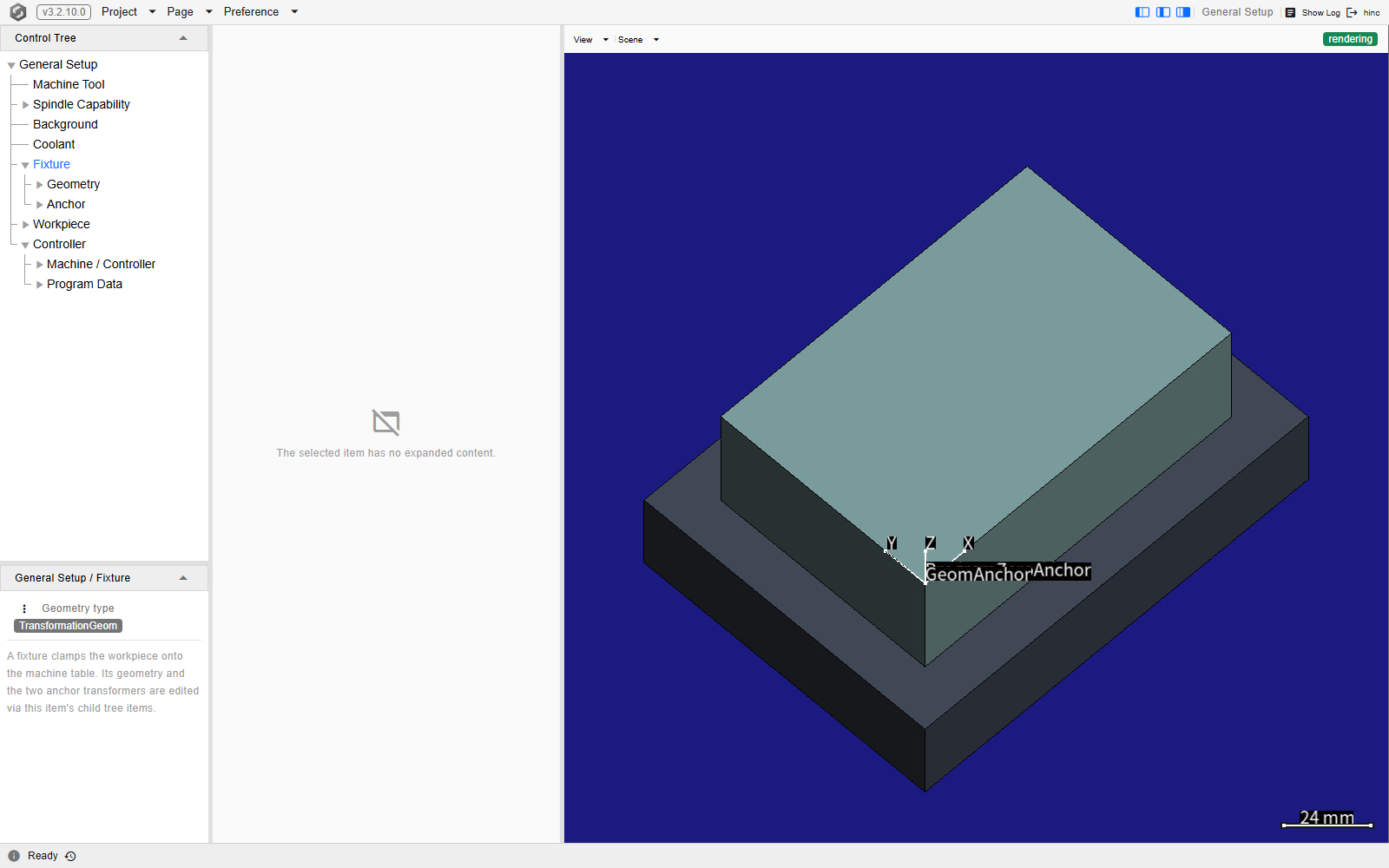
The Fixture item selected on a demo project, at /equipment?tree=equipment/mechanism/fixture. The
panel is the Object Management (⋮) button over a caption, and below them the Roles panel:
three rows — Table Mount, Workpiece Mount and Geometry Anchor, each marked Anchor ·
required — with a dropdown naming the anchor bound to each and a pick button (tooltip Pick on the
graph) beside it, and All checks pass. under the list. The canvas draws the fixture with the stock on it.
The fixture a project carries
A new project is created with a fixture already on it, in the default shape: the root anchor is the Geometry Anchor, carrying a geometry slot with no shape picked yet, with one branch to the Table Mount and one to the Workpiece Mount, each branch named after the anchor it arrives at. A project may also legitimately carry no fixture: the Object Management button is then greyed out, a second caption under the intro reads No fixture available. Open or create a project first. and the Roles panel reads Not mounted. That is a valid setup rather than a broken one — with no fixture the workpiece is assembled onto the machine directly, its fixture mount attached to the machine's table mount, one of the named anchors the scene is assembled at (Assembly Anchors).
The panel's Object Management button is the fixture's file surface, available only once the
project has a fixture. Load installs a fixture file (.Fixture or .xml) picked from the server in place of the
current one — re-attaching the table and workpiece mounts and confirming with a Fixture replaced
notice. Save As writes the current fixture out, offered as Fixture.xml in the project directory;
Copy / Paste carry it as XML; XML Mode edits that XML directly, its Apply installing
the result exactly as a Load does.
Giving it a geometry
The fixture's shape hangs on the anchor bound as its Geometry Anchor. In the Topology column, click that anchor in the graph — it carries the Fixture · Geometry Anchor badge inside the Fixture cluster — and the editor card below the graph opens on it: the anchor's Name, an Add Branch target picker, and under a separator the Geometry checkbox with a type badge, a Display color swatch and the Geometry type kind picker, a Transform picker and the picked kind's editor beneath them. The geometry anchor keeps its geometry — clearing the checkbox on it is refused — so change the shape by picking another kind. A fixture geometry must be able to produce an STL, so the voxel meshed-geometry kind offered on the Workpiece branch is absent.
| Kind | Pick it for |
|---|---|
Box3d |
A plate, a block, a vice body — anything box-shaped. |
Cylindroid |
A solid of revolution given as Z–R pairs: a round chuck, a spacer. |
StlFile |
A mesh exported from CAD, for a fixture worth drawing accurately. |
GeomCombination |
Several of the above assembled into one fixture. |
A shape drawn in its own frame is moved into place with the Transform picker rather than by a kind of its own: No Transform uses it as drawn, and a Static Translation, Static Rotation, Static Freeform or General Transform shifts or turns it, that transform's editor appearing under the shape's. The type badge then reads Transformed StlFile.
Any other anchor of the fixture takes a geometry the same way; the workpiece's anchors do not.
Placing it
The two transforms that place the fixture live on the two branches leaving its geometry anchor. Click a branch in the Topology column's graph and the editor card shows its Name, its two end anchors, the Transformer type in force and, under Transformer, the kind picker with the picked kind's editor.
| Branch | What it sets |
|---|---|
| Geometry Anchor → Table Mount | Pins the fixture geometry onto the machine's table mount. |
| Geometry Anchor → Workpiece Mount | Where the workpiece attaches — the workpiece mount — relative to the fixture geometry. |
The dotted edge arriving at the Table Mount from the machine's worktable end is the equipment's own attachment, and the one attachment whose transformer is editable; the dotted edge leaving the Workpiece Mount for the workpiece follows the roles and shows Only the worktable attachment carries an editable transformer; the other attachments follow their roles.
What an anchor is, and the order to fill these in, are Anchors and Roles. To check the result, the Scene dropdown in the toolbar above the canvas carries Fixture Rendering Mode and, in its Anchors group, the Fixture Geometry Anchor, Workpiece Mount and Table Mount overlays, plus Role Anchors, which draws every bound role anchor of every part at once.
Roles
The Roles panel at the end of the Fixture item's panel says which of the fixture's own anchors plays each part. Each row is a role — Table Mount, Workpiece Mount, Geometry Anchor, all required — with a dropdown over the fixture's anchors and a pick button (tooltip Pick on the graph): press it, and the next click on one of the fixture's anchors in the Topology column binds that anchor. Clicking the Fixture cluster in the graph selects this item in the Control Tree, so the two sit side by side. Rebinding a role re-attaches the equipment and the canvas redraws; the graph's attachment edges are rebuilt at the same time.
Below the rows the server's checks are listed, or All checks pass.: a required role not bound (Not bound; the mechanism needs this role.), one anchor playing two roles (The same element also plays …), an anchor no branch chain reaches from the root, a role pointing outside the fixture's own assembly, or a branch marked as an error term, which belongs only to an axis or the spindle of the machine tool — a mark only a hand-edited file brings in, taken off with the Clear mark button on the branch's card in the Topology column. A fixture with an unbound role still loads and is still drawn, but the equipment attaches only bound roles, and a run stops at its start naming an unbound Table Mount or Workpiece Mount.
See Also
- Anchors and Roles — what an anchor is, and the order to place the machine, fixture and workpiece in
- Workpiece — the part this fixture holds, and its own geometry and material
- Machine Tool — the machine carrying the table mount the fixture is pinned to
- Program Zero Alignment — the task that rewrites the transformer on this fixture's Geometry Anchor → Table Mount branch when the part has to be placed on a recorded work offset
- Setup — the rest of the pre-simulation configuration