Mechanism Builder
Building a mechanism: anchors joined by branches, each branch carrying the transform between its two ends, and each anchor optionally carrying a shape. It is where a virtual machine tool's topology is assembled and then written out as a file a project can load.
Where it is
Its own page, reached from the menu bar's Page → Mechanism Builder, at /util/mech-builder.
Nothing on it belongs to a project, so it opens and edits with no project loaded, as the File
Explorer beside it does. The mechanism is held by the server rather than by the page — more than the
page keep-alive The Application Window grants every screen,
because there is one mechanism per server rather than one per browser: a second person editing at the
same time is editing the same one.
Three fixed, equal-width columns, none of them draggable: the File menu, the Add Anchor button and the graph of anchors and branches on the left, where clicking a node, or the label on an edge, selects it; the editor for whatever is selected in the middle, headed Anchor or Branch; and Display, the 3D view of the mechanism, on the right, which redraws as the mechanism changes.
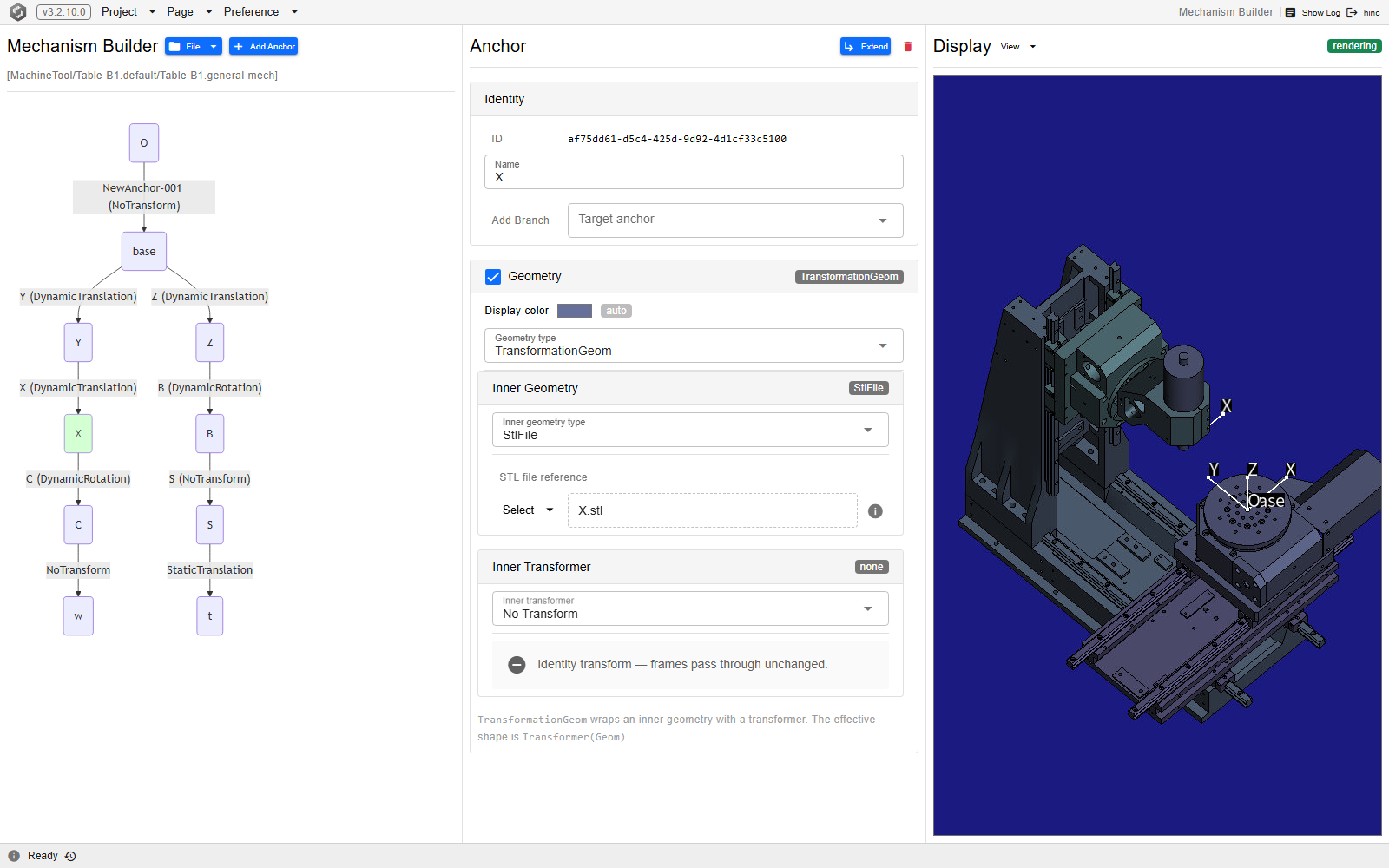
At /util/mech-builder, with an anchor picked in the graph. The open file's path sits under the
File menu; the header of the middle column carries Extend and the delete button; and the
Geometry card here holds a TransformationGeom, so its own inner geometry — an STL file — and its
own inner transformer are edited underneath it.
What the anchors and branches must be called — the motion-axis and end-anchor keywords, which way branches must point, and how to take the numbers off a CAD assembly — is Building Virtual Machine Tools; this page is only how to drive the editor.
Starting, loading and saving
| File menu entry | What it does |
|---|---|
| New | Discards the mechanism on screen and starts an empty one holding a single root anchor. |
| Load… | Opens the server file picker — File Explorer's browser in picker mode, over the roots that page lists — filtered to *.GeneralMechanism, *.general-mech and *.xml — the first is what this page's own Save As writes and what the shipped mechanism is named; the second is the older spelling hand-authored files still carry, and it loads the same way. The server reads the file where it sits and remembers its folder. |
| ReLoad | Re-reads the file you last loaded, dropping the edits made since. Disabled until a file has been loaded. |
| Save As General Mechanism | Writes the mechanism as a .GeneralMechanism XML where you pick, and re-points ReLoad at it. |
| Save As Machine Tool | Wraps the same mechanism as a machine tool and writes a .MachineTool XML. ReLoad goes on pointing at the mechanism file, because a machine tool is a different file type. |
There is no plain Save that overwrites what you opened: both writes are Save As and both ask
where the result goes. Under the File menu the left column shows the open file's relative path, or
(unsaved) while the mechanism has no file yet — after New, until the first Save As.
Note
Save As Machine Tool does not check the end-anchor keywords. The write succeeds and reports the file saved whatever the anchors are called, including a mechanism whose tool-end and worktable-end anchors are mis-cased or missing altogether. A file written here asks for its collision pairs to be generated, and generating them needs those two anchors by their exact names, so such a file is refused the first time anything reads it — on the General Setup page's Machine Tool branch, not here, and with a message naming the keyword it wanted. Get the names right before saving; they are in Building Virtual Machine Tools.
A .MachineTool written here is not a project's chain until it is loaded onto one, on the General
Setup page's Machine Tool branch — see
Building Virtual Machine Tools.
Growing the chain
- Click an anchor in the graph to select it. The root carries a Root badge and is the one anchor that cannot be deleted.
- Press Extend in its header. That creates a new anchor and the branch reaching it from the selected one, then selects the new anchor — the normal way a chain grows.
- Add Anchor, beside the File menu, is for a loose anchor instead: it creates one connected to nothing, which you join up afterwards with the Add Branch picker on an anchor's Identity card. That picker offers every anchor except the selected one and those already joined to it in either direction.
- Name each anchor as you make it. New ones arrive as
NewAnchor-001,NewAnchor-002and so on, so type the real name into Name on the Identity card; it commits a moment after you stop typing. A branch carries a Name field of its own in the same place.
Deleting an anchor or a branch is a double-click on the red delete button in its header.
Geometry on an anchor
Geometry is optional and belongs to one anchor at a time. Select the anchor and tick Geometry on
the Geometry card; a badge beside the checkbox names the shape currently held, and un-ticking the
box removes it. Five kinds can be built here — Box3d, Cylindroid, StlFile, TransformationGeom
and GeomCombination — and TransformationGeom carries its own inner geometry and inner
transformer, so a shape can be offset from the anchor it hangs on. Display color, above the
shape editor, is written into the mechanism file itself, so everyone who opens that file sees the
same colour; until you set one the badge reads auto and the view uses a stable colour of its
own, which the reset button beside the swatch returns to.
The branch transformer
Click the label on a branch's edge — the transformer type, or the branch's name and type — to select
the branch. Its Identity card names the two anchors it joins in order, the one the branch starts from
and then the one it reaches, with an arrow between them; that order is the branch's direction. Below
that, the Transformer card picks between seven kinds, in the order the picker lists them:
Static Translation, Static Rotation, Static Freeform, Dynamic Translation,
Dynamic Rotation, General Transform and No Transform — which is what every new branch starts
on. Pick a kind and its fields appear underneath; the choice takes effect at once, so the right-hand
view shows the joint as you edit it. The two dynamic kinds are the ones whose value varies at
runtime — a machine's moving axes are branches carrying those.
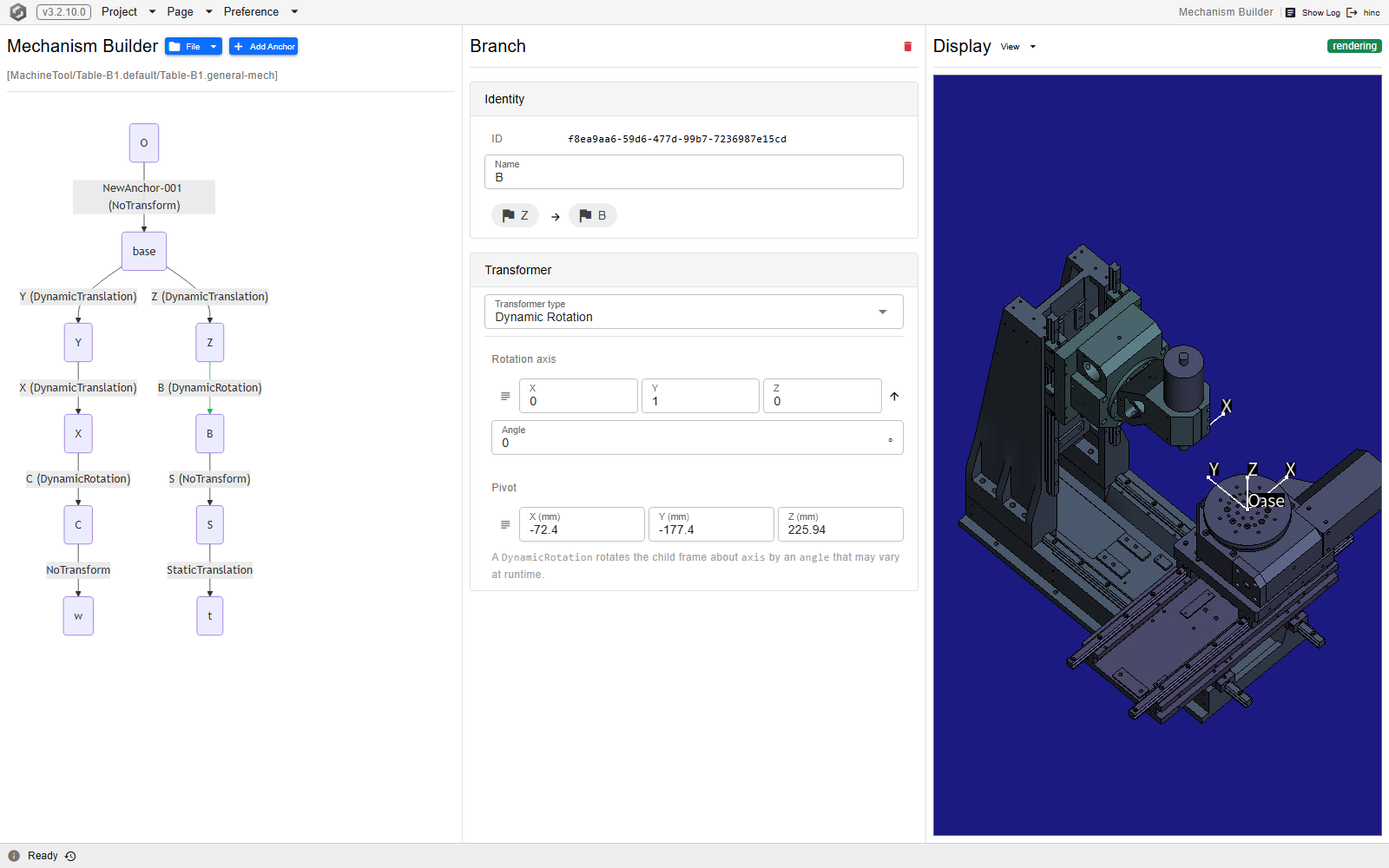
At /util/mech-builder, with a branch picked. A Dynamic Rotation carries the axis it turns
about and the pivot it turns around; the angle is the value a run varies, so the number shown here
is the resting one. The sentence under the fields names the same three parts.
See Also
- File Explorer — the server-side browser behind this page's Load and Save As dialogs, and the roots they offer
- Utilities — the other screens the Page menu lists beside this one
- Building Virtual Machine Tools — the naming keywords, branch direction and CAD practice a machine chain built here must follow, and where the saved file is attached to a project
- Mechanism Builder Page — the component behind this page: its cards, its file IO and how edits reach the canvas