File Explorer
Working with the files a project is built from, on the server rather than on your own machine. The File Explorer lists what is there, opens a file beside the listing — text in an editor, a Markdown file as a formatted page beside or instead of its text, a CSV as a chart over its own text, an STL as a 3D preview — and uploads, downloads, renames, copies and deletes them.
Where it is
Its own page, reached from the menu bar's File Explorer switch, at /util/file-explorer. It
needs no project loaded. The same browser also runs inside every file dialog the application opens
— the File menu's New, Load and Save As, the Object Management button on a
Control-Tree item's editor panel, and the browse entry beside a file-path field such as an STL
geometry's, a material's or an NC file's — so learning it here is learning all of those. A dialog opens with the editor panel hidden — the
pencil button in its toolbar still shows it — and adds a bar for confirming the pick.
The three roots
The root selector at the left of the toolbar picks which tree is shown. There are three:
| Root | What it holds |
|---|---|
| Admin | The server's working area. Projects and the shared resource library both live under it. |
| Project | The folder of the currently-loaded project. Listed only while a project is open. |
| Resource | The shipped library — controllers, cutter and workpiece materials, machine tools, spindle capabilities — in a folder named Resource under Admin. |
Everything the browser reports is named relative to the chosen root. Absolute server paths are not shown and are not sent to the browser, so a path copied out of this page names a location inside a root rather than a place on a disk.
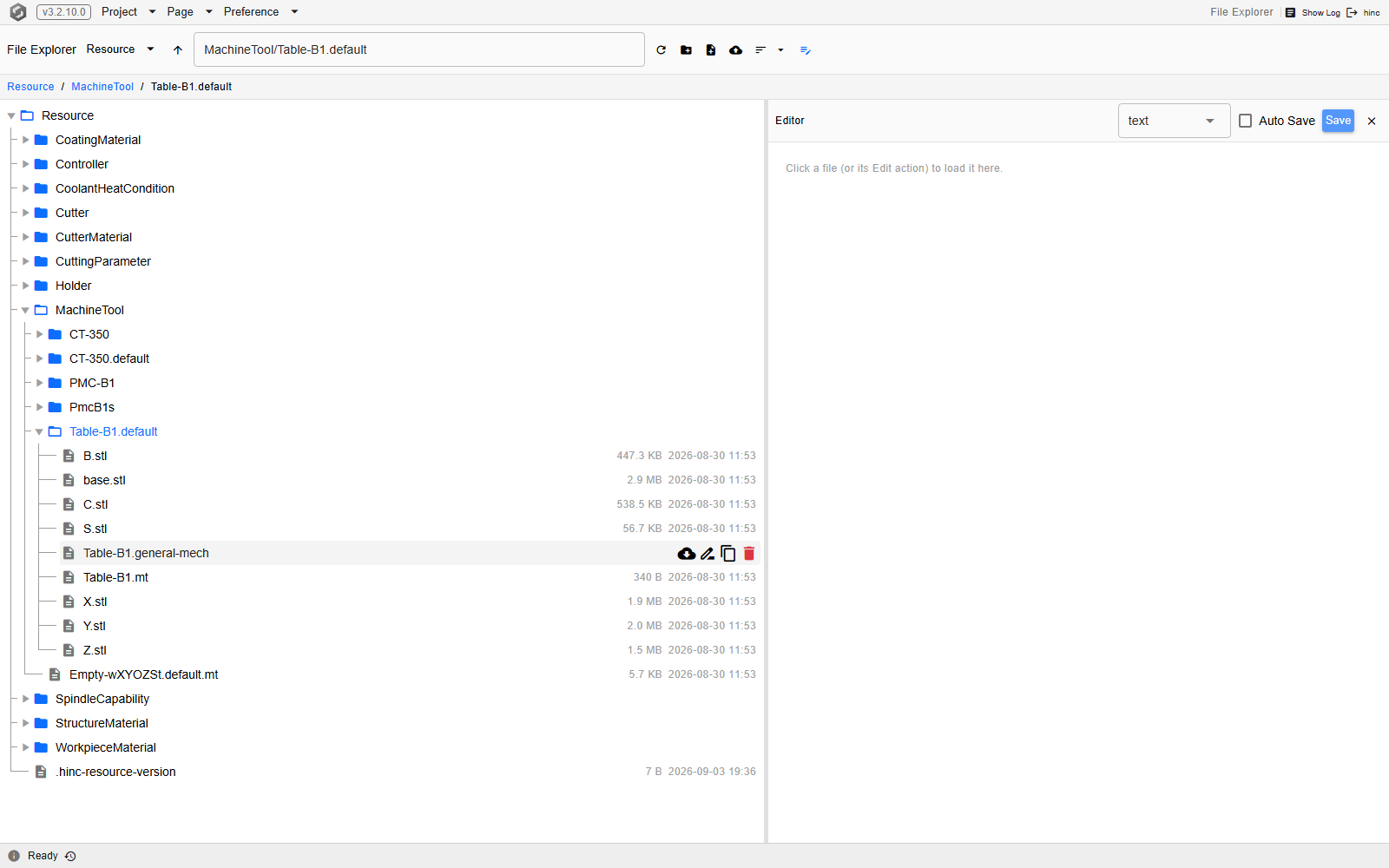
At /util/file-explorer/Resource/MachineTool/Table-B1.default, with the pointer resting on one
row. The action strip appears only on the row under the pointer, and it is laid over the size and
modified columns so nothing on the row moves as it appears.
Finding a file
Three ways in, and they agree with each other:
- Expand the tree. A folder lists its contents the first time it is opened, so a large tree costs nothing until it is walked into.
- Type the path. The path box in the toolbar takes a path relative to the selected root;
Entergoes there. The arrow beside it goes up one level. - Use the address. The selected file or folder is mirrored into the page address as
/util/file-explorer/<Root>/<path>— the path box's path after the root — so either can be bookmarked or pasted to someone else. Browsing rewrites the address, and editing the address drives the browser: a file's address selects that file and opens it as a click on it would.
Every row of the tree is a link to its own address, so right-clicking a file or folder offers the browser's own Open link in new tab, Open link in new window and Copy link address, and a Ctrl+click, Shift+click or middle click opens it there while this tab stays where it is. The browser's Save link as saves the page that address opens, not the file: the row's download button downloads the file.
The breadcrumb above the listing goes back up in one click, and the sort control in the toolbar sets the order — by name, size, modified time or type, ascending or descending, with folders kept first or not.
Reading and editing a file
Clicking a text file loads it into the editor on the right (a CSV opens in the chart viewer instead, described below); the bar above the editor names the root and the path, and the language selector on the same bar picks the syntax highlighting. That selector is set from the file's extension when the file opens — a project, machine tool, mechanism, material or milling-parameter file all arrive as XML — and can be changed for the file in hand.
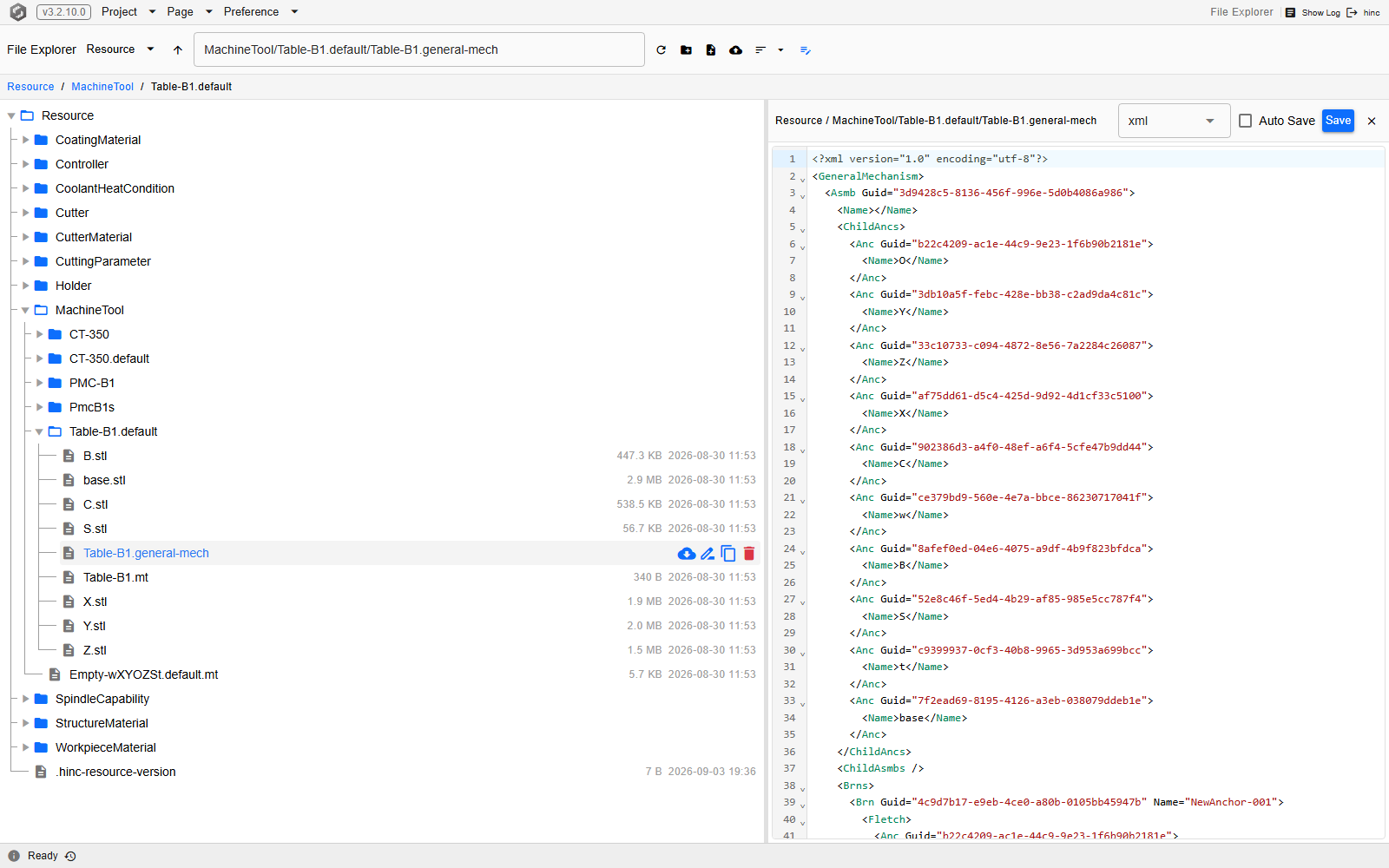
At /util/file-explorer/Resource/MachineTool/Table-B1.default, after clicking the mechanism file.
The pencil button at the right of the toolbar hides and shows this panel; a file clicked while it is
hidden opens nothing, so a double-click is the gesture that opens a file either way.
Edits are not saved until Save is pressed, and the file's name carries a red mark while there are unsaved edits. Ticking Auto Save instead writes shortly after typing stops and disables the button; switching files, closing the panel or leaving the page flushes a pending write first. With Auto Save off, those same three actions ask before discarding unsaved edits.
A text file too large for the editor opens read-only instead, its lines fetched page by page as you scroll. The bar carries a Read-only badge whose tooltip names the size limit, the line count — which keeps rising while the file is indexed or still being written — a Go to line box and a download button.
Binary files do not open here. A click on a .zip, .exe, .dll, .pdb, .bin, .dat, .db,
.sqlite, .pdf, .docx, .xlsx, .pptx, .png, .jpg, .jpeg, .gif or .bmp file does
nothing, since the extension already says it is binary; any other file the server finds binary is
reported as binary rather than filling the editor with bytes. An .stl file opens a 3D preview in the editor's place instead: its
Transform button opens a section that poses the geometry, and that section's Save overwrites
the file with the posed geometry once confirmed. Closing the preview brings back whatever text was
underneath, unsaved edits included.
Reading a Markdown file
A Markdown file (.md) opens as a formatted page. The Edit | Split | View buttons on the editor
bar, left of Auto Save, choose what the panel shows: Edit the Markdown text in the editor,
Split the text and the page side by side, View the page alone. The choice is remembered on
this device for the next Markdown file; any other language on the selector hides the buttons and
shows the editor alone, and choosing markdown there shows a .txt file as a page as well.
The page follows what GitHub shows for a Markdown file in a repository: headings, tables, task lists,
footnotes, the five callouts written > [!NOTE], > [!TIP], > [!IMPORTANT], > [!WARNING] and
> [!CAUTION], a YAML front-matter block, and code blocks coloured by the language named after the
opening fence (csharp, python, xml, json, gcode, mpf and others). Formulas are written in
LaTeX between $ signs inside a line and between $$ lines, or in a block fenced as math. A block
fenced as mermaid is drawn as a diagram — a flowchart, a sequence diagram, a Gantt chart — or as a
chart: xychart-beta draws bars and lines over an x axis, and pie, quadrantChart, sankey-beta,
radar-beta and treemap-beta draw the others. A diagram mermaid cannot read shows its text with
mermaid's message under it.
```mermaid
xychart-beta
  title "Spindle load"
  x-axis [T1, T2, T3, T4]
  y-axis "Load (%)" 0 --> 100
  bar [35, 62, 48, 80]
  line [30, 55, 50, 75]
```
In Split the two sides scroll together, line for line, whichever one you scroll; the page follows the text as you type, and a double-click on a paragraph of the page puts the cursor on its line. The divider between them can be dragged, and a double-click on it shares the width half and half again.
A link to another file, written relative to the open file, opens that file in the panel — a folder
is browsed to instead — and a link to a heading, #heading or file.md#heading, scrolls to it. An
image written the same way is shown from the server. Links to web addresses open in a new browser
tab. Scripts, forms, styles and other active parts a file may carry are not run or shown: the page
shows the document, not what it might do to the application around it.
The address bar names the open file and how it is shown — for example
/util/file-explorer/Project/docs/README.md?mode=split — so the link opens the same file the same
way on another computer. A file the panel keeps showing after something else has been selected is
named as well, as ?file=Project/docs/README.md.
Charting and editing a CSV
A .csv file opens in the chart viewer rather than the editor: a chart of the columns you pick,
over the file's own text, the two linked both ways. Clicking a point on the chart marks its row and
scrolls the text there; clicking a line of the text marks that row on the chart. The menus on the
viewer's bar set what is drawn:
- Series — the header's number and time columns, each with a tick box, a colour and a value conversion (shown value = value × Scale + Offset), so columns in different units can share one scale.
- X: — the column along the horizontal axis (Row index, or any number or time column) and the Time format it is read in.
- Y: — the value scale: Fit (auto), Fit, outliers left out, Lock between a minimum and a maximum, or Symmetric about zero.
- Lines — which line holds the column names (Header line (0-based)) and how many lines after it to skip, read against the file's first lines.
The mouse wheel zooms about the pointer, a left drag zooms to the span dragged over, a right or middle drag pans, and a double-click or Reset zoom returns to the whole file. On a long file each point spans several rows and is drawn as a band from their minimum to their maximum; the row count beside the path keeps rising while the file is still being parsed.
The text below the chart edits the file in place, whatever its size. Each column is coloured — a
charted column in its series colour — and the text's own bar names the cell under the pointer.
Double-click a cell to edit it — Enter keeps the change, Esc drops it, Tab moves to the next
cell — and right-click a row to insert a row above or below it or to delete it; the title row
cannot be deleted. Changes stay pending, counted on that bar, until Save on the viewer's bar
above the chart: it writes them into the CSV, and any unsaved chart settings into a file beside it
named after the CSV with .strip.json appended. With no changes pending, Save writes that
settings file alone. If the CSV changed on disk meanwhile, the changes on lines that changed there
are dropped and the rest are kept for another Save; a file still being written is not saved into
until it stops growing.
The selector at the right of the viewer's bar switches views: picking a language opens the same file as text in the editor, whose selector offers Chart viewer to come back. A CSV too large for the editor stays in the viewer instead, with a notice naming the size limit, and its text half is where that file is edited. Closing the viewer, switching it to text or opening another file asks first when changes are pending.
Renaming and moving
Rename on the row's action strip edits that entry's name. Because the name is written back as a path relative to the folder it is in, the same action moves files:
Tip
Moving by renaming
- Renaming
file1.txttoFolder/file1.txtmoves the file intoFolder. - Renaming
file1.txtinsideFolderto../file1.txtmoves it out to the folder above.
Parent folders that do not exist yet are created. A move that would land outside the root is refused, and so is one whose destination already exists.
A rename cannot move a file from one root to another. To do that, download from one and upload to the other.
The other row actions
- Download saves the file to your own machine. On a folder it becomes Download as ZIP, which packs the folder on the server and sends the archive.
- Extract ZIP, offered on
.ziprows only, unpacks the archive beside itself into a folder named after it, and refuses when a folder of that name is already there. - Duplicate copies the entry next to itself under the first free
-Copy-00…-Copy-19name, and reports that all twenty are taken rather than overwriting one. - Delete (double-click) acts on a double-click only, and deletes at once with no further question; a single click does nothing. On a folder it removes the folder and everything under it, and it will not delete a root.
Upload, in the toolbar, sends one file from your own machine into the folder being shown, and overwrites a file of the same name that is already there. New Folder and New File beside it create empty ones; creating a file that already exists fails rather than emptying it.
See Also
- File Explorer Page — the component this page describes: its toolbar, its picker mode, the roots it exposes and the endpoints behind each action
- Building Virtual Machine Tools — the Machine Tool item whose Object Management Load opens this browser on the shipped machine tools
- Utilities — why this screen is the last of the menu bar's page switches
- Projects — what the Project root holds, and which of those files a Save As copies