Step Variables
Your own value of each step: a formula over the step, saved with the project and read on every play.
A step variable is a value of every step that the project defines with a formula — C# over the
step, such as a stored force divided by a stored ratio. The project keeps its step variables and
every play reads them: the Color Index Time Chart can plot one and colour the tool path and the cut
faces by it, and Step Properties can list it beside the built-in step properties. Nothing is stored
on the steps; a variable is computed whenever a step is read. A value written onto a step under the
variable's key — by a mission script, a CSV program, or a CSV mapping of a file with a column of that
name, such as a step file this product wrote — is read on that step in place of the formula. Such a
written value is kept in the run's step cache — the database file that holds the run's other
per-step results — not in memory: a long program with written columns (a CSV mapping, a CSV
program, a script's running sum) costs no memory per step, and the values stay as long as the run's
steps do. The variables are the Execution page's third Control-Tree root, Step Variables, below
Mission and Program, at Control-Tree path execution/step-variables.
Where it is
The root's panel lists two groups.
- Project — the variables this project defines, one row each: the name above the key, the unit
and the format, and a badge for what the engine made of it. Compiled is registered and read on
every step. The other three are not registered, and say why: Does not compile; Key of a
built-in property — a key named like a built-in step property, or under
MC., which the machine coordinates reserve; Key repeated in the project — only the first variable under a key counts. Each variable is also a node under the root, and its row selects that node. - Registered at run — the keys this session added another way: a mission script's
RegisterStepVariable, the columns a CSV program or a CSV mapping brought onto the steps, a training's two. They are listed read-only with where they came from, and go with the session. A color tree is no step variable, so its key is in neither group, whether a mission script registered it withRegisterStepColorTreeor the project file holds it.
Edits in this branch change the project in memory. They reach the project file when the project is saved, File › Save, and the panel says so under the list.
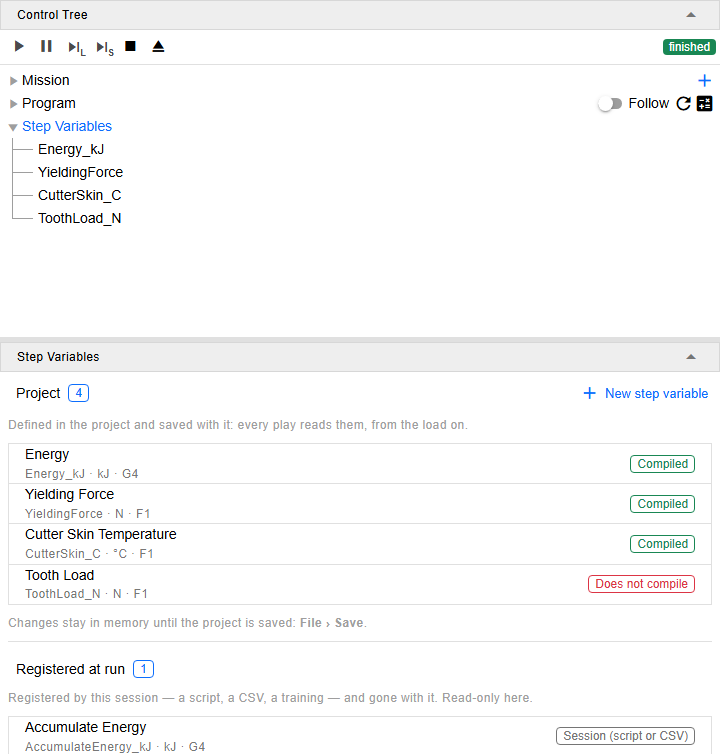
The branch at /execution?tree=execution/step-variables after a play. AccumulateEnergy_kJ was
registered by the mission's script, which writes a running sum onto each step (the last section
below).
Adding one
New step variable asks for a key. The key is checked as you type: it may not be empty, hold a
comma or a quote — a step file's CSV header could not carry it — or a slash, be a lone . or ..
— the variable's address could not — or be the key of a variable the project already has. A built-in property's key
is refused when you add it, and so is the key of one of the project's color trees (Step Colors) or a key another browser tab added meanwhile. The new variable
reads no value on any step until its formula is written, and its editor opens.
Writing the formula
The editor holds the Key, the Name (shown in the lists and the charts; empty shows the key),
the Unit, the Format — a .NET numeric format, G4 four significant digits, F2 two
decimals, with the common ones a click away under the field — and the Formula (C#).
The formula is one C# expression, or one block in braces that returns the value, over the step it
is given, step. It returns a number: an int or a float converts, null is no value on that
step, and a bool does not compile. Completion lists the step's members as you type — step. and a
few letters. Half a second after you stop typing, the formula is checked: its errors are listed
under the editor with their line and column, and underlined where they are. The check runs nothing
and changes nothing.
Apply puts the variable into the project in memory: the formula is compiled and the project's step variables are registered again, so the charts and the colours read the new definition at once, without a play. A formula that does not compile is not applied, and its errors come back in the same two places. Whatever you type while Apply is on its way stays in the editor, not applied.
A variable whose formula does not compile — a project file from another version that names a member this one does not have, for example — is listed as Does not compile and reads no value. Its editor shows the errors from the start:
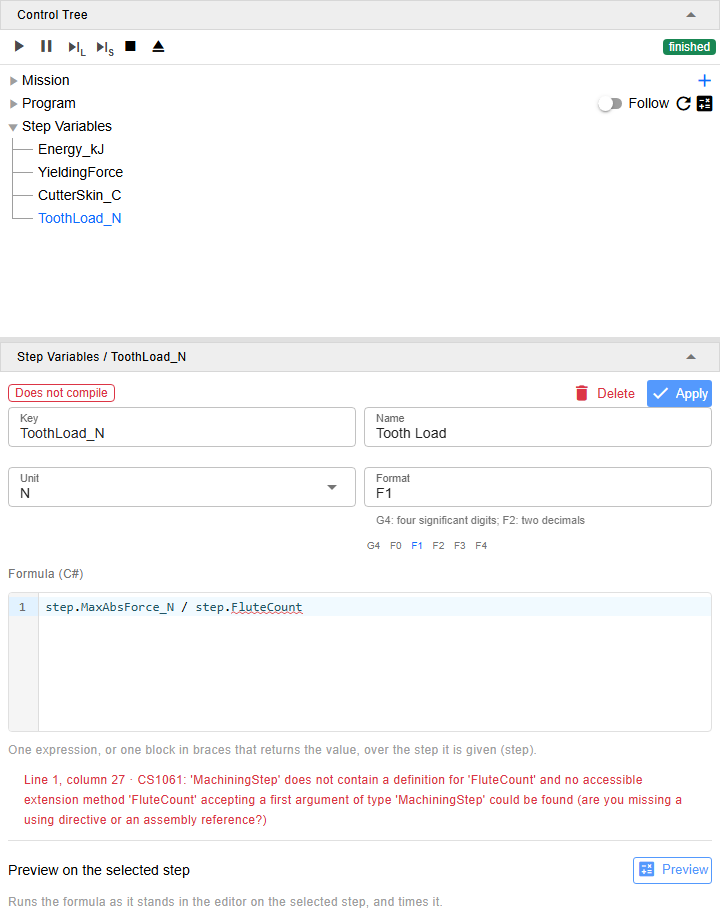
/execution?tree=execution/step-variables/ToothLoad_N. The step has no member FluteCount, so the
variable is not registered and reads no value until its formula is fixed and applied.
Changing the key and applying renames the variable. What the project keeps under the old key moves to the new one — the inspected key of the Color Index Time Chart, its colour range and its Y-axis setting, and every term and shown value on that key in the project's color trees (Step Colors) — and where the Step Present Preference dialog lists the old key, it lists the new one next to it. A key another variable of the project still has, or a built-in property's key, keeps what is under it. Delete removes the variable, after a confirmation. When no other variable of the project is left under its key and one of the project's color trees has a term or a shown value on that key, a notification names those trees, by their keys: unless a built-in property or one registered at run has the key, those terms and shown values now read as no value, tagged Unresolved (Step Colors).
Switching to another node with changes not applied asks first: Cancel stays, Discard drops the changes, Apply & Switch applies them and goes on. A switch that does not ask — Follow on the Program row taking the selection to the file the run is in — keeps the changes, and they are there when you come back to the variable. If the variable is changed somewhere else meanwhile — another browser tab on the same project — the editor says so, and Apply puts your version over that change.
Trying it on a step
Preview runs the formula as it stands in the editor, applied or not, on the selected step — select one on a chart, in the Program viewer or in the 3D view first, since a play selects none. It shows the value in the variable's format and unit, the raw value, the exception if the formula threw on that step, and how long one pass over all the steps takes: the formula is timed on up to 100 steps from the selected one — the last 100 when it is near the end — and the median time per step times the number of steps is about what one chart redraw or one recolouring costs. Selecting another step marks the result as old.
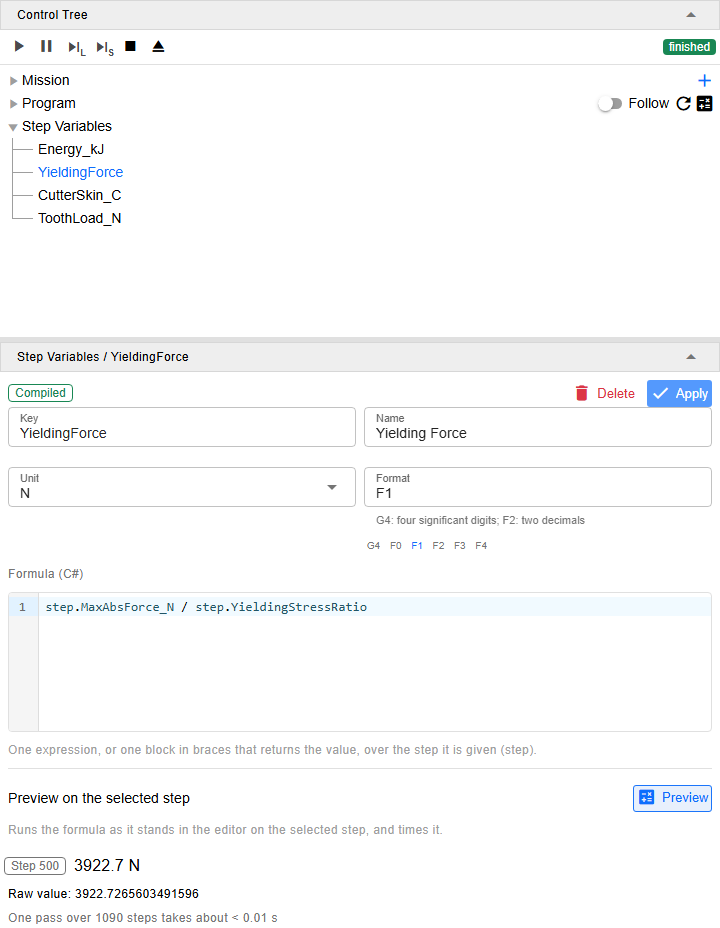
Preview on step 500 of the 1,090 steps circle.ptp played.
A formula that throws on a step reads as no value on that step, and the session messages report each variable's first throw once.
Note
Each formula text that is compiled — by Apply or by Preview — loads code into the server that stays there until the server restarts; the check that runs as you type loads nothing. A long session that tries many different formulas uses memory for each of them.
In the charts and the colours
An applied variable is in the Color Index Time Chart's property picker at once. Picked there, it is the chart's line and the colour of the tool path and the cut faces. A new key's colour range is 0 to 1, so values above it show red and values below it blue: set the range under Colors (Watching the Run). To list it in Step Properties, add it under Custom in the Step Present Preference dialog (Inspecting a Step).
To sort the steps into categories instead — each with a colour of its own in the 3D view and a lane of its own on the chart — define a color tree: Step Colors.
Three examples
| Name | Unit | Formula | What it is |
|---|---|---|---|
| Yielding Force | N | step.MaxAbsForce_N / step.YieldingStressRatio |
the cutting force that would take the cutter's body to its yield stress, if the stress grew in step with the force |
| Cutter Skin Temperature | °C | step.GetCutterDermisTemperature_C(0.001) |
the cutter's temperature 0.001 mm under its surface — a method with an argument |
| Energy | kJ | step.SpindleMeterPower_W * step.StepDuration.TotalSeconds / 1000 |
the energy a spindle meter counts over the step |
What a formula costs, and what belongs in a script
A formula that reads what the step stores — forces, temperatures, times — takes about a microsecond per step or less: the three examples above measured 0.4 to 1.1 µs, at most about a tenth of a second for a pass over a 100,000-step run. A formula that reads a per-revolution array, such as a side-roughness profile, can take on the order of a minute per pass on a long run; preview it and read the time before you colour by it.
A value that adds up every step before it — the energy used so far — would read all the earlier steps again on every step. Write it in the mission's script instead, onto each step as the step is built (Step):
RegisterStepVariable("AccumulateEnergy_kJ", "Accumulate Energy", "kJ", "G4");
SessionStepBuilt += (preStep, curStep) =>
{
    double energy_kJ = curStep.SpindleMeterPower_W * curStep.StepDuration.TotalSeconds / 1000;
    double before_kJ = preStep?["AccumulateEnergy_kJ"] is double d ? d : 0;
    curStep["AccumulateEnergy_kJ"] = before_kJ + (double.IsNaN(energy_kJ) ? 0 : energy_kJ);
};
It is listed under Registered at run, and a formula reads it as
step["AccumulateEnergy_kJ"] as double?. On the run above it ends at 13.02 kJ — the same sum the
built-in AccumulatedSpindleMeterEnergy_kWh keeps in kWh.
The handler's write costs nothing extra: the value goes out to the step cache with the step's own
results, and preStep["AccumulateEnergy_kJ"] is read from the step just published, not from the
file. A value written after the play goes to the step cache on its own, one write — one
transaction — at a time. A script that fills many steps afterwards should therefore use the bulk
write described in Step rather than a loop of
step["key"] = ...: it puts up to 4,096 writes in one transaction, and the charts and the colours
catch up once per batch instead of once per write.
See Also
- Step — step variables from a mission script, writing onto a step, step files
- Watching the Run — the Color Index Time Chart and its colour guide
- Inspecting a Step — Step Properties and the Step Present Preference dialog
- The Program Branch — the root above this one
- Step Colors — the root below this one: your own categories of steps, each a leaf of a color tree with its colour and its lane
- Step Variables Branch — how the branch is built