The Other Commands: the Optimizer
The optimizer's command among The Other Commands: where NC Optimization Config sits in a mission and what of the run it reaches, the nodes that steer the optimizer, and the optimization play, the run that writes the optimized program. The Setup commands, the outputs, the mapping, Setup Angle Estimation, Manual Tooling and the Script command are on that page.
The optimizer, as a step
NC Optimization Config is the Optimization category's one command, and it exists so the optimizer's settings sit at a point in the run rather than over all of it. Everything played below it optimizes under those values, and a second one further down re-points them mid-mission.
When the command runs, it hands the run a copy of its values. A Script entry below it that sets
an Opt… value, or an NC-embedded @@Opt… in a program below it, changes that copy alone: the
command keeps the values set on it, the project saves those, and the next run starts from them again.
An edit to the command while a run plays takes effect when the command next runs.
Its own node carries one setting, Omit Leading Zero in Output, which only formats the numbers written out. Everything that steers the optimizer sits on the nodes beneath it, nested the way the optimizer uses them: a switch is a node with its own checkbox, and the nodes under a switch act only while it is ticked — they dim while it is not.
| Node | Checkbox | What is on it |
|---|---|---|
| Enable Optimization | yes | turns the optimizer on for what plays below the command; also the extended pre- and post-distances, the rapid feed and the feed assignment ratio — in percent, 1 % unless you change it —, which act even with feedrate optimization off |
| Enable Feedrate Optimization | yes | adjusts each cut's feed to the force and safety targets; its values are on the four nodes under it |
| Feedrate | — | the feedrate floor and ceiling and the feed-per-tooth bounds |
| Floor at Source Feedrate | yes | keeps every cut at or above a share of the feed the program itself commands there — 80 % unless you change it |
| Motion Dynamics | — | the maximum acceleration |
| Force & Safety | — | the preferred cutting force and the stress, thermal stress, spindle-torque and spindle-power safety factors |
| Enable Interpolation | yes | lets one line be split into several, so the feed can change within the line |
| Compensation | — | the forward, side and depth compensation switches |
Enable Optimization is the only node directly under the command. Enable Feedrate Optimization, Enable Interpolation and Compensation hang under it, and the four nodes from Feedrate to Force & Safety under Enable Feedrate Optimization.
Floor at Source Feedrate is for a program that already runs in production. Below 100 %, the force and safety targets can still slow the heaviest cuts down to that share of the programmed feed — that is what spares the tool — while no cut runs slower than that, so the share caps how much longer the run can take. At 100 % the optimizer only speeds cuts up: the run takes no longer, but no cut is relieved, so the tool gains nothing. Where the floor keeps a cut above a target, the run's messages say how many steps, per target.
The command's own checkbox, like every command's, decides whether the mission runs this command — not whether the optimizer is on, which is the Enable Optimization checkbox under it. While Show Physics Options is off, the whole command is hidden from the tree: the optimizer works from the simulated cutting force, so without physics it has nothing to work with.
The command takes no title: its row always reads NC Optimization Config. What each quantity means, and why an optimized result can look wrong, is NC Optimization.
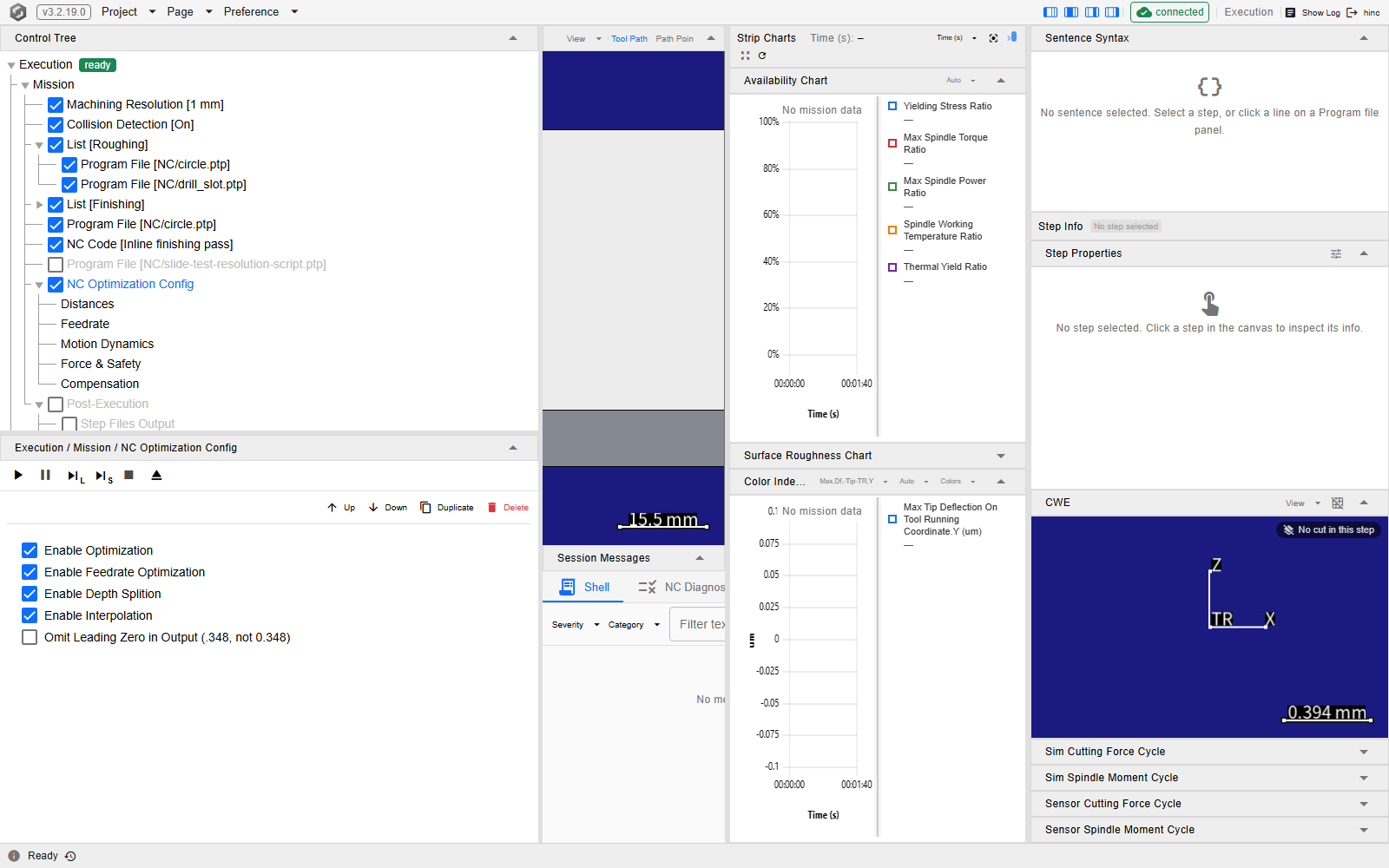
The demo mission's optimizer command, at /execution?tree=execution/mission/7. In this mission it
sits below both List groups and the three loose entries after them rather than above them, so
the ordering rule at the top of this section is what decides how much of the run it reaches. Its
own panel below the tree, headed Mission / NC Optimization Config, holds only the output
spelling; the switches and value nodes are indented under it in the tree, where Floor at Source
Feedrate is unticked and dimmed. Because the row is selected, its move, duplicate and delete
buttons show at its right edge.
The optimization play
The optimization play is the run whose Post-Execution has Optimization Output ticked: it plays the original program — under the values of an NC Optimization Config above it, or the optimizer's defaults where there is none — and then writes the optimized program from that play's steps. Its play is a simulation of the original program and nothing more, so its steps are the before of the optimization; the after is a replay of the program it wrote. The application shows neither this name nor plain play: they name a way of using these commands, not a command.
NC Optimization Config changes how the steps are optimized, not how they are simulated: the play records which values were in force at each step, and its cut, its steps and their readings are those of a plain play — the same program played with no optimization after it. The command itself optimizes nothing: the optimizer runs after the play, when Optimization Output does or a script or a client of the HTTP API asks for it. It reads the played steps back, solves each step's feed against the values recorded for it, and writes the optimized programs to the output's template, covering every program played since the last Reset (Writing out what the run produced). That work comes on top of the play, so an optimization play takes longer, and can take more memory, than a plain play of the same program.
Press Reset before the optimization play: after a Stop, or a Start without a Reset, the
optimization can write nothing, or two runs into one file
(A Start after a Stop), and a script's
PowerReset() or a switch of the controller brand or preset between two programs makes it write
nothing. Without the NC optimization licence it writes nothing either: Shell shows
OptimizeNc--NotLicensed, and the mission goes on.
To see what the optimization did, keep the optimization play's steps, which the next Reset clears: tick Step Files Output on the same Post-Execution. Then point the program's Program File at the written one, press Reset, and play it as a plain play — with Optimization Output unticked, or the run optimizes the optimized program as well. The new feeds divide its lines into other steps, so its readings can come out slightly above a target the optimizer held (Post-Optimization Simulation Differences).
See Also
- The Other Commands — the page this command belongs to: the Setup commands, the outputs the optimization play writes through, the mapping commands, Setup Angle Estimation, Manual Tooling and the Script command
- NC Optimization Option Panel — the component behind NC Optimization Config, field by field
- Workflow: NC Optimization — optimizing a program from start to finish, and why a replay of the optimized program can read slightly above a target