Writing a Condition
How a node's condition is written on a Step Colors tree. Where a tree, a group or a leaf is added, and how a change is applied, are on that page.
A node's Condition is one of two things.
Otherwise — takes every step that reaches it, ticked, gives the node no condition: it takes every step that comes down its list to it. It belongs on the last node of a list, so that a step no node above takes still gets a colour. Ticking it on a node that has terms puts the terms aside, and unticking it gives them back; terms put aside are no part of the tree, and Apply does not send them.
Otherwise the condition is a Join — All hold or Any holds — over a list of terms. A term
is one row: the key, the comparison, the threshold with the key's unit, and ✕ to remove it. A
ratio's threshold — the stress ratio's, a spindle ratio's, a step variable's of the ratio unit — is
typed in percent, % beside the field: 100 for the ratio's 100 %. So is the breakage probability's,
which is a percent already. The tree keeps a ratio's threshold as the ratio itself, 1, as the project
file and the HTTP API carry it, and the node's condition in one line reads it in percent,
Stress Ratio > 100%. The comparisons a term offers follow its key:
| Key | Comparisons |
|---|---|
| A number, such as Feedrate | Greater than >, At least ≥, Less than <, At most ≤, Equal to =, Not equal to ≠, Has value, No value |
| A yes or no, such as Is Rapid | Is yes, Is no |
| A named value, such as Stress Critical Zone | Equal to =, Not equal to ≠, the value picked by its name |
| A text, such as CollisionText, which a colliding step has | Has value, No value |
Has value and No value take no threshold. A term whose key you change to one of another kind takes that kind's first comparison, on a named value Equal to its lowest-numbered value, None for a zone. One whose key you change to another number keeps its threshold as the tree keeps it, read in the new key's unit: 100 under Stress Ratio, the ratio 1, reads 1 under Feedrate, so type the threshold again for the new key. A named value — Stress Critical Zone and Stress Onset Zone each hold one of None, Flute, Taper and Cylinder — is picked from a dropdown of its names in place of the number field. The tree keeps the value's number, 3 for Cylinder, and the node's condition in one line reads the name, Stress Critical Zone = Cylinder; a term whose key you change from one zone to the other keeps its comparison and value. A term on a named value written with another comparison, such as At least 2 in the project file, or with a number no name has, is kept as it is and shows the eight comparisons and the number field.
A step whose property reads no value — no physics behind it, nothing touched — fails every comparison but No value, Not equal to included, and the hint under the terms says so: on a play without the physics, Stress Ratio > 100% and Stress Ratio ≤ 100% both fail.
A node added with Add leaf or Add group starts with Any holds and no terms, which holds for no step: the node takes nothing until you add a term, so a leaf just added does not swallow the steps meant for the nodes below it. Removing every term leaves such an empty condition, marked with a warning — under All hold it takes every step, under Any holds none — and never turns the node into an Otherwise by itself.
Add terms… opens the key picker: a filter box, then the step properties by their names, the key on hover, under Common, Physics and Project step variables, each with a checkbox. Add and the number ticked — Add 3 — adds one term for each key ticked, in the order ticked, each complete with its kind's first comparison: Greater than 0, Is yes, Equal to None or Has value. The picker lists no color tree's key — a tree is not read inside a tree — and it lists Physics only while Preference › Show Physics Options is on and the physics is licensed, saying so otherwise; it follows the switch at once. A term or a shown value already on a physics key keeps it while the option is off, tagged Physics hidden, and the tree reads it all the same.
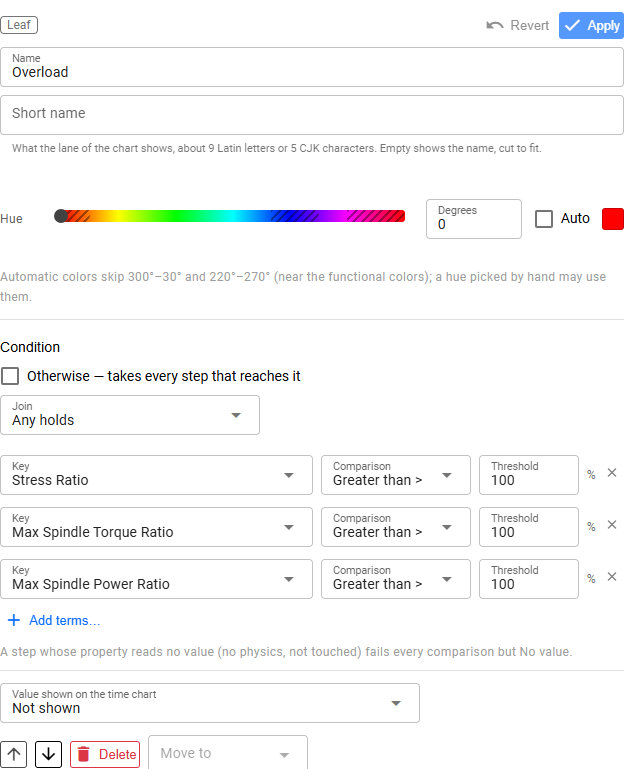
/execution?tree=execution/step-colors/LoadCheck/n2, with Show Physics Options on: the leaf
Overload of the load-check example, its hue picked by hand in a stretch the automatic colours skip.
See Also
- Step Colors — the trees, their groups and leaves, and applying a change